










- Print Design



Clipping Mask with Custom Shapes
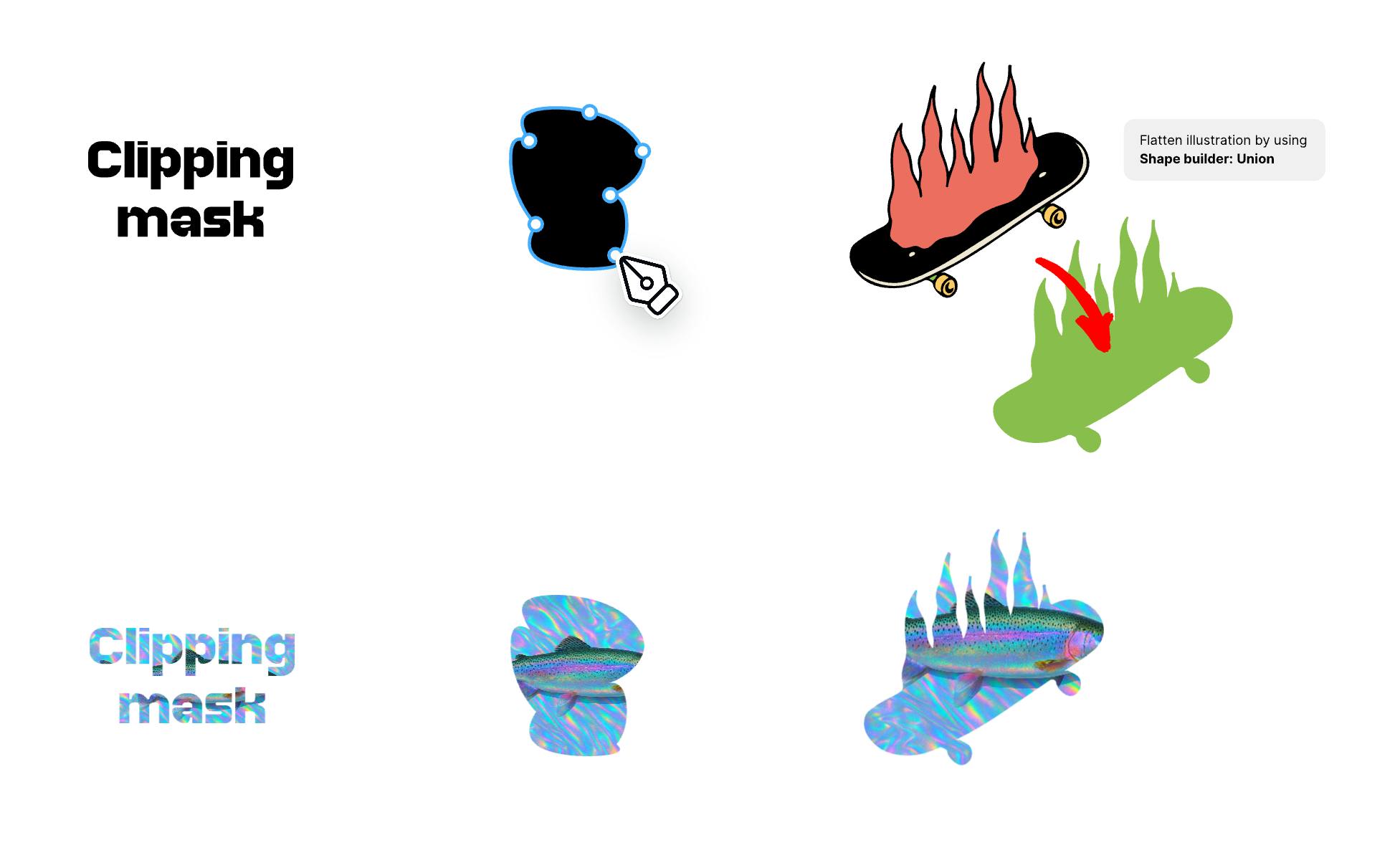
Clipping masks let you crop one object into the shape of another. It’s a powerful way to add texture to text, crop images into custom shapes, or frame artwork with more control.
In Kittl, you can turn any single-layer vector shape into a clipping mask — even the ones you’ve drawn yourself with the Pen tool. That means you’re not stuck with presets. You can create custom, expressive layouts using shapes that match your style.
Create a clipping mask
There are two ways to create a clipping mask in Kittl:
Option 1: Create a mask "container" first
- Draw or select any single-layer vector shape.
(e.g., from the mask preset library, your own SVG, or something made with the Pen tool) - Right-click and choose Use as mask, or press Cmd/Ctrl + Shift + M.
- Drop your content (images, textures, illustrations, etc.) into the mask. (Note: Once something is added to the mask, drag-and-drop is disabled to prevent accidental edits.)
Option 2: Mask multiple elements instantly
- Place your mask shape at the bottom.
- Position the object(s) you want to mask above it.
- Select everything, then right-click and choose Use as mask, or press Cmd/Ctrl + Shift + M. Kittl will automatically mask everything above the shape into it.
Tip: If you want to use an illustration as mask, use the Shape builder to flatten into a single layer first. Only single-layer vectors can act as a mask — Groups, nested objects, or multiple layers are not supported.
Edit the mask or content inside
Clipping masks in Kittl are non-destructive — so you can tweak them anytime without losing the original state of your content.
To edit the content inside:
- Double-click the mask group to enter edit mode.
- Move, resize, rotate, or style the content as needed.
To edit the mask shape:
- Double-click the mask path.
- You’ll enter vector edit mode, where you can adjust points and curves.
Tip: Want to add a background color to your mask shape? With the mask group selected not the mask itself, go to Selection Colors in the right panel — it’s transparent by default, but totally customizable.
Release a clipping mask
You can release it the same way you created it:
- Right-click and choose Release mask
- Or use the shortcut Cmd/Ctrl + Shift + M.
- Or click Release mask in the Properties (right) panel. Your contents and shape will return to their original, separate elements.
What can you do with clipping masks?
Clipping masks unlock creative freedom — beyond the mask presets, no boring crops. Try them for:
- Adding textures or patterns inside custom type
- Cropping images into hand-drawn shapes
- Framing illustrations with badges or silhouettes
- Creating dynamic, layered layouts
Not limited to presets. Your shapes, your way.