









- Print Design


Kittl Video
How to use Kittl Video
Kittl Video lets you turn a design into a short video clip — directly on the canvas. There are no timelines, no keyframes, and no need to export into a separate video tool.
Here’s how it works:
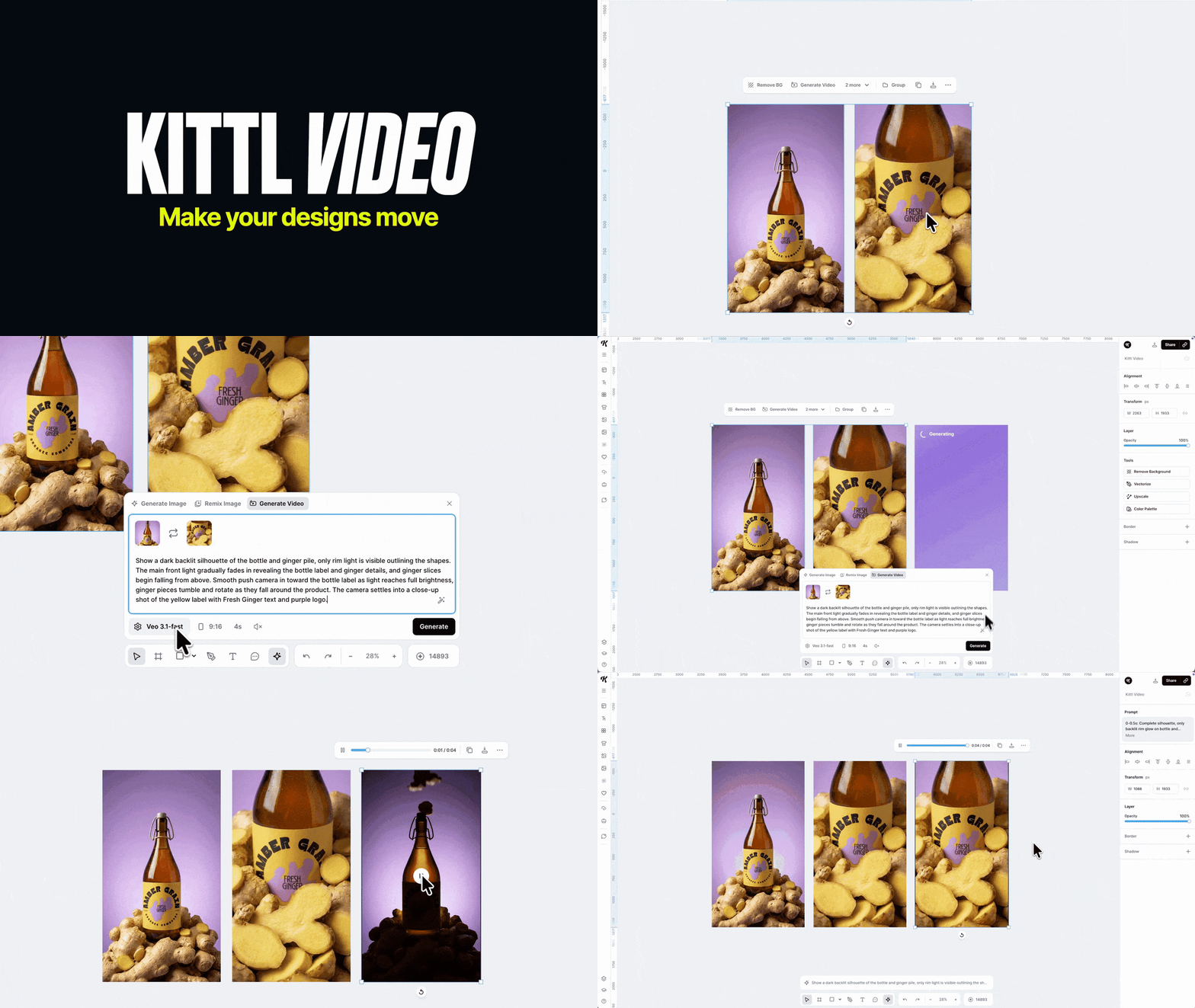
- Open the AI panel (same place you access Image Generation / Remix), then choose "Generate your video".
- Choose your Start frame (required). You can use a design, mockup, text, illustration, image, artboard, or Smartboard as input.
- (Optional) Choose an End frame to guide how the motion should finish.
- Write your prompt describing the motion.
- Choose your settings:
- Model: Veo 3.1 / Veo 3.1 Fast
- Duration: 4s / 6s / 8s
- Audio: Optional (model-dependent) - Click Generate → your video appears as a tile directly on the canvas.
How to write a prompt
After selecting your input, open the AI Input panel at the bottom of the canvas and go to the Generate Video tab.
A good prompt usually includes:
- What moves (logo, text, background, product, shapes)
- How it moves (slide in, pulse, drift, reveal, rotate, parallax)
- The vibe (subtle, energetic, clean, retro, glossy, minimal)
Tip: If you want motion that feels more “graphic design” than “cinematic,” mention typography/layout motion (e.g., “headline slides in with easing, background drifts subtly”)
Prompt Presets for Video Gen
Video prompts are easy to overthink. One word can change the whole motion. That’s why we built 6 video prompt presets—ready-made starting points that help you get smoother, more predictable animations. You can select a preset directly inside the video prompt input and adjust from there
Use Smartboards with Video
- Select your Smartboard, click on the arrow on the middle left boarder of the board , and choose “AI Video Board”.
- (Optional) Add an End frame by connecting another Smartboard to the Video Board.
- Write your prompt and choose your settings.
- Click Generate → your video appears as a video tile on the canvas.
Reuse the same motion across changing inputs
Want to keep the same motion/prompt while your content updates?
- Regenerate your Smartboards.
- Select the video, open the AI Input panel, and click Generate again.
Your inputs update, while the prompt (and motion direction) stays consistent.
Token usage for Video
Video generation costs more than image generation. Total cost depends on model + duration + audio.
Tokens per second:
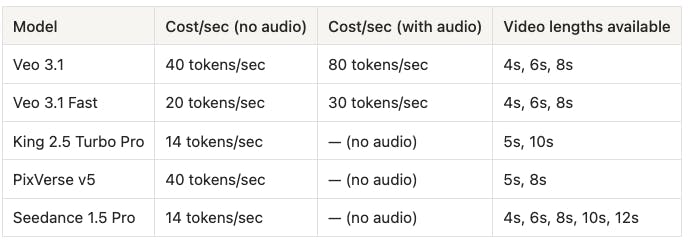
Example: an 8s clip with Veo 3.1 + audio can cost up to ~640 tokens.
One of Kittl’s superpowers: do the whole design flow in Kittl
Video Generation shines when you build the entire asset end-to-end — without leaving Kittl:
- Design your layout (type, vectors, composition)
- Use mockups to place the design in a real scene
- Create initial and end frame (for example with Remix or smartboards) to lock in the final look
- Generate Video to bring it to life — right on the same canvas
This gives you a smooth design → polish → final frame → motion workflow with no tool switching or handoffs.
Design → Mockup → Remix end frame → Generate Video → playback on canvas
Editing the video
Generated videos appear as movable video tiles on your canvas.
You can:
- Move, resize, and rotate them like other elements
- Preview them (with sound if generated)
- Adjust standard styling (like opacity, shadow, border)
What’s not supported:
- No timeline editing
- No cutting/trimming inside Kittl
- No keyframes or manual animation controls
What you can do with AI Video Generation
- Design and animate assets for ads, promos, product visuals, and brand content — all in the same canvas
- Use Start & end frames for more guided motion.
- Use Smartboards to generate videos and regenerate them as your inputs change — while keeping the same motion/prompt for consistent results.
- Export MP4s directly from Kittl as any other asset.