









- Print Design



Kittl Flows – Image Board
How to use Kittl Flows
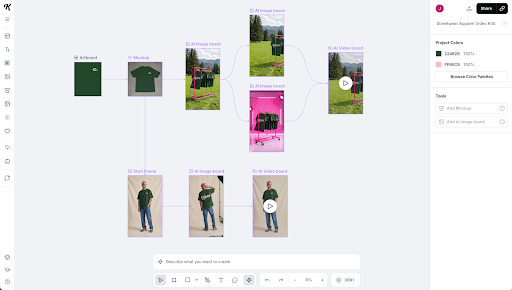
Kittl Flows let you build flexible, creative pipelines by connecting different boards – mockups, AI Image boards and AI Video boards – into a dynamic sequence. Think of them as modular, editable steps that respond to your design input and evolve with your prompts.
Here's how it works
Start your Flow
- Select any Artboard with an existing design, logo, or image.
- In the properties panel or contextual taskbar, click Add Mockup, Add AI Image Board or Add AI Video Board.
- A board appears, automatically linked to your Artboard. This connection ensures context travels from one step to the next.
Add a prompt
Once your board is selected, you’ll see a prompt input field appearing at the bottom of your screen.
Describe the transformation you want – restyle the original, iterate on a detail, or reimagine it completely. Then choose your preferred ratio and quality.
Click Generate and let Kittl do the rest.
What you can do with Flows
- Use Generate Again to explore new variations
- Build entire creative chains by adding boards to existing ones – each board pulls from the last
- Select multiple boards and run them all at once
- Set any board as your project thumbnail (right-click to access the option)
- Convert any board to an object with “Flatten”, for:
- - Images and mockups, you can edit them like any other image
- - Video, you can edit it like any other video
Find every generated image and video in your My Creations folder inside AI Gallery
Kittl Flows are for fast iteration, bold exploration, and saving time on the mundane. It’s great for prototyping concepts or generating assets. It gives you the flexibility to experiment, without starting from scratch.
You create the idea. Kittl Flows take it further.