Some designers say vectorizing is outdated, that modern AI tools and high-resolution images have made it irrelevant.
But ask anyone who’s ever had to print a logo, scale a poster, or clean up AI art, and you’ll hear a different story. Vectorization isn’t gone; it’s more important than ever. So what is a vectorizer?
Before you dismiss vectorization as just another technical step, stick around. Because once you understand what a vectorizer actually does (and why designers still swear by it), you’ll see it’s not just a tool.
And we’ll show you why it’s the safeguard of every great print, logo, and piece of art that needs to last.
What is a vectorizer?
At its core, a vectorizer turns pixels into paths. That means instead of tiny colored squares that blur when you zoom in, your image becomes a collection of clean, mathematical curves and shapes.
These shapes can scale infinitely — perfect for logos, t-shirt graphics, stickers, or anything that needs to look sharp from a thumbnail to a billboard.
Traditional vectorizers, like Adobe Illustrator’s Image Trace, give you manual control over how those shapes form. You can set the number of colors, adjust smoothing, or simplify paths.
But that power comes with a cost: time. Most designers end up spending as long cleaning up the result as they would tracing it by hand.
Then there are tools such as Vector Magic or other online converters. They promise one-click vectorization, and they usually deliver, just not always in the way you expect.
They tend to oversimplify details, flatten textures, or turn photos into posterized color blocks. Great for quick logos, not so great for artwork that relies on nuance or realism.
But Kittl’s AI Vectorizer is different.
It preserves subtle edges and gradients instead of flattening them, keeping your image smooth where it should be and sharp where it counts. Best of all, it’s free to try — no sign-ups or downloads, just drop your image and hit Vectorize. In today’s world of gated tools, that kind of freedom is rare.
Why vectorizing matters? 5 benefits of vectorization
Vectorizing is what makes your artwork usable everywhere.
When you convert pixels into scalable shapes, you gain full control over how your design behaves across print, digital, and branded materials.
Here’s why it matters more than ever:
1. Scalability without compromise

Raster images like JPGs or PNGs rely on pixels, which blur when enlarged. Vector files, however, use mathematical paths that stay crisp at any size. You can resize a logo for a business card, billboard, or hoodie print without losing a single detail. That’s why most brand guidelines require vector formats such as SVG, PDF, or EPS for professional use.
Learn more about how scalable designs work in our guide to vector editing tools in Kittl.
2. Print-ready precision

Printers rely on vector files for clean separations and color accuracy. Each shape or path translates perfectly to ink, vinyl, or embroidery, ensuring consistent output across different formats — from screen printing to DTG (direct-to-garment) production.
If you’ve ever sent a low-resolution PNG to print and seen the edges crumble, that’s exactly what vectorization prevents. It creates artwork that’s ready to print anywhere, anytime.
3. Brand consistency across every platform

When a logo or illustration is vectorized, it looks identical everywhere — on social media, websites, product packaging, and merchandise. No pixelation, no mismatched proportions. Vector formats lock in your brand’s shape, color, and proportion for total visual consistency.
To see how vectors support consistent branding, check out our post on creating brand assets and logos in Kittl.
4. Freedom to edit and experiment

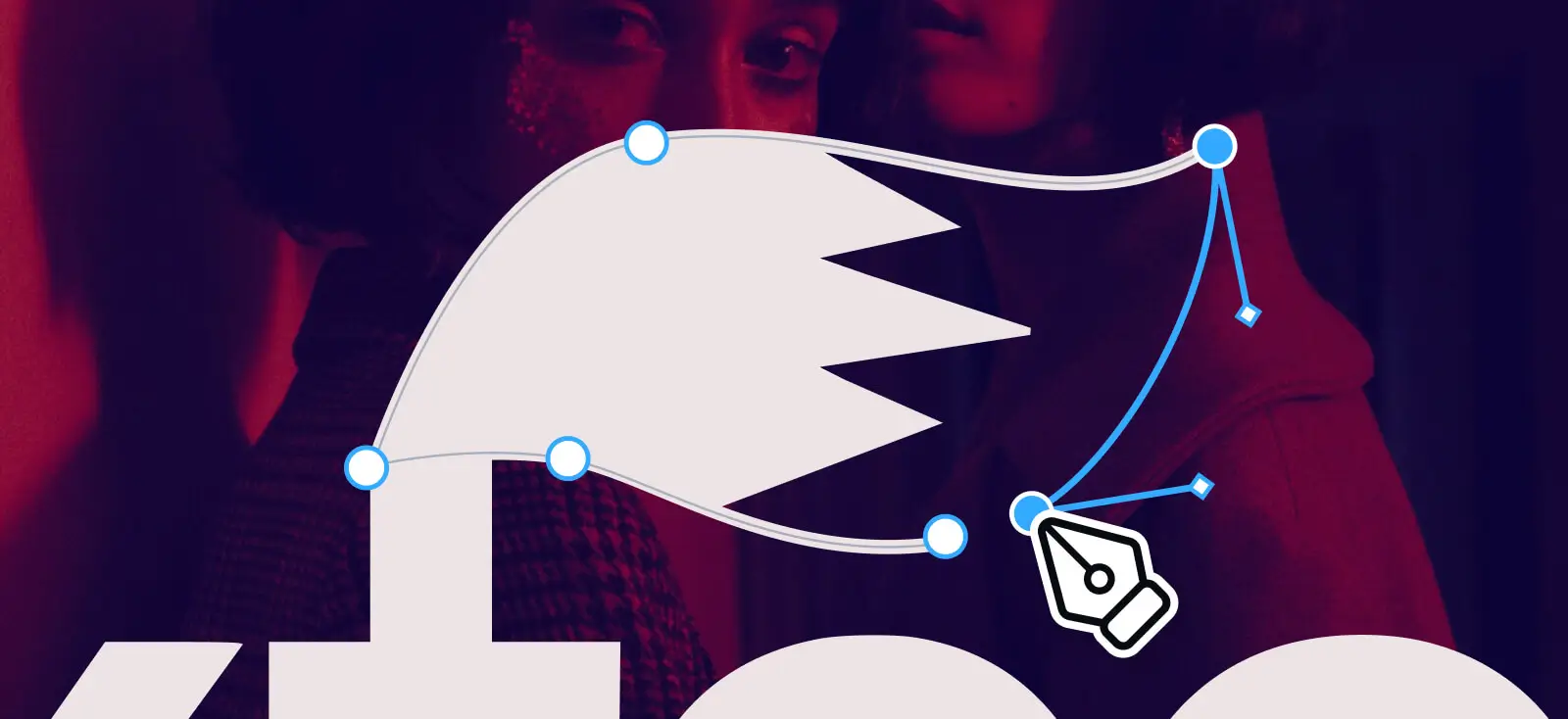
Once you vectorize your image using the Kittl Vectorizer, you can immediately continue editing it inside the Kittl editor. You’ll have access to tools like the Pen Tool, shape adjustments, and path editing, so you can refine outlines, recolor sections, or merge elements without switching software.
This workflow gives you complete creative freedom — from cleanup to customization — all in one place. You can turn a traced sketch into a polished logo, fine-tune color variations for print-on-demand, or reshape an icon for a new product line.
5. Future-proofing your designs

Design software changes fast, but vector formats like SVG and PDF remain universal. They’re supported across modern design tools, browsers, and print systems, ensuring your files stay usable for years to come.
Where vectorizers like Kittl’s shine
Kittl’s Vectorizer stands out because it’s the start of your entire design workflow. You can upload an image, choose how many color points you want, click Vectorize, and instantly keep working in the same editor.
From logo recovery to merch prep, here’s where it really shines.
1. Logos

Rebuild old or low-res logos into clean, scalable marks that stay consistent across every platform. After vectorizing, open the file right in Kittl to adjust curves with the Pen Tool, fine-tune shapes, and set your brand colors. Export crisp SVG or PDF versions for web and print in one step.
2. Vector art for printing and merch

Limit your color palette during vectorization to create print-ready designs with clean separations. Inside Kittl, you can merge paths, adjust outlines, and preview how your art will look on apparel or packaging. It’s a fast way to move from concept to production without leaving the browser.
3. AI art cleanup

Turn AI-generated images into editable designs that match your brand. Kittl’s Vectorizer keeps subtle shading and structure intact, so you can recolor, simplify, or reshape elements right after conversion. It’s ideal for transforming AI concepts into real, usable vector assets.
4. Digital illustrations and icons

Convert hand-drawn sketches or raster icons into clean, scalable sets. Use Kittl’s editing tools to adjust stroke weight, align corners, and keep spacing consistent across every element. You can duplicate, recolor, and export ready-to-use assets directly for web or app design.
Kittl AI Vectorizers vs traditional tracing
Designers often debate whether it’s better to manually trace in a program like Illustrator or let AI handle it for you. Both have their strengths: control versus convenience. But the best tools now blend accuracy with speed.
| Approach | What it offers | When it works best | Common frustrations | Designer takeaways |
| Manual tracing (Adobe Illustrator) | Absolute control over every curve and anchor point; ideal for perfectionists. | Custom logos, illustrations, or high-end branding work. | Time-consuming; steep learning curve; repetitive cleanup. | Great for pros who love full control, but not ideal for fast turnarounds. |
| Generic online auto-vectorizers | One-click conversion that’s quick and often free. | Quick fixes, simple shapes, or low-detail logos. | Often flattens gradients and oversimplifies detail; limited editing options after export. | Good for basic needs, but not for detailed or realistic art. |
| Kittl AI Vectorizer | AI-driven tracing that preserves texture and edge detail. Built directly into Kittl’s editor for instant editing. | Rebuilding logos, cleaning AI art, prepping merch or illustrations. | Fewer advanced path tools than Illustrator for ultra-technical edits. | Smooth balance of realism, speed, and convenience. Free to use with no sign-up barriers. |
Key takeaway: Why vectorizer saves your time
Traditional tracing is still the go-to for meticulous artists who want to refine every node.
But for most modern workflows (especially for designers working on logos, merch, or AI-generated art), Kittl’s AI Vectorizer offers a faster, more realistic result with the added bonus of direct editing inside the same workspace.
No switching programs, no flattening your art, and no sign-up walls in your way.
How to try Kittl’s vectorizer in your next project
You don’t need a tutorial to get started with Kittl’s Vectorizer. It’s designed to feel effortless from the first click. Here’s how you can test it right now:
- Upload your image: Drop in a JPG, PNG, or WEBP file directly on the Kittl Vectorizer.
- Set your color points: Choose how detailed or simplified you want your vector to be. Fewer colors for bold prints, more for realistic art.
- Click Vectorize: Watch Kittl’s AI redraw your image into crisp, scalable paths that stay true to your original.
- Edit or export: You can instantly continue refining your new vector inside the Kittl Editor using tools like the Pen Tool, shape adjustments, and recoloring — or download your file and use it anywhere you like.
You can even use the Vectorizer inside the Kittl Editor. Just select an image on your canvas, open Tools in the right-hand panel, and vectorize it directly on your artboard. The result is saved to your Uploads so you can reuse it anytime.
It’s that simple: no logins, no downloads, no waiting. Just a faster way to turn any image into a ready-to-use, fully editable design.
Try it yourself today on the Kittl Vectorizer. See how smooth professional-quality conversion can actually feel.