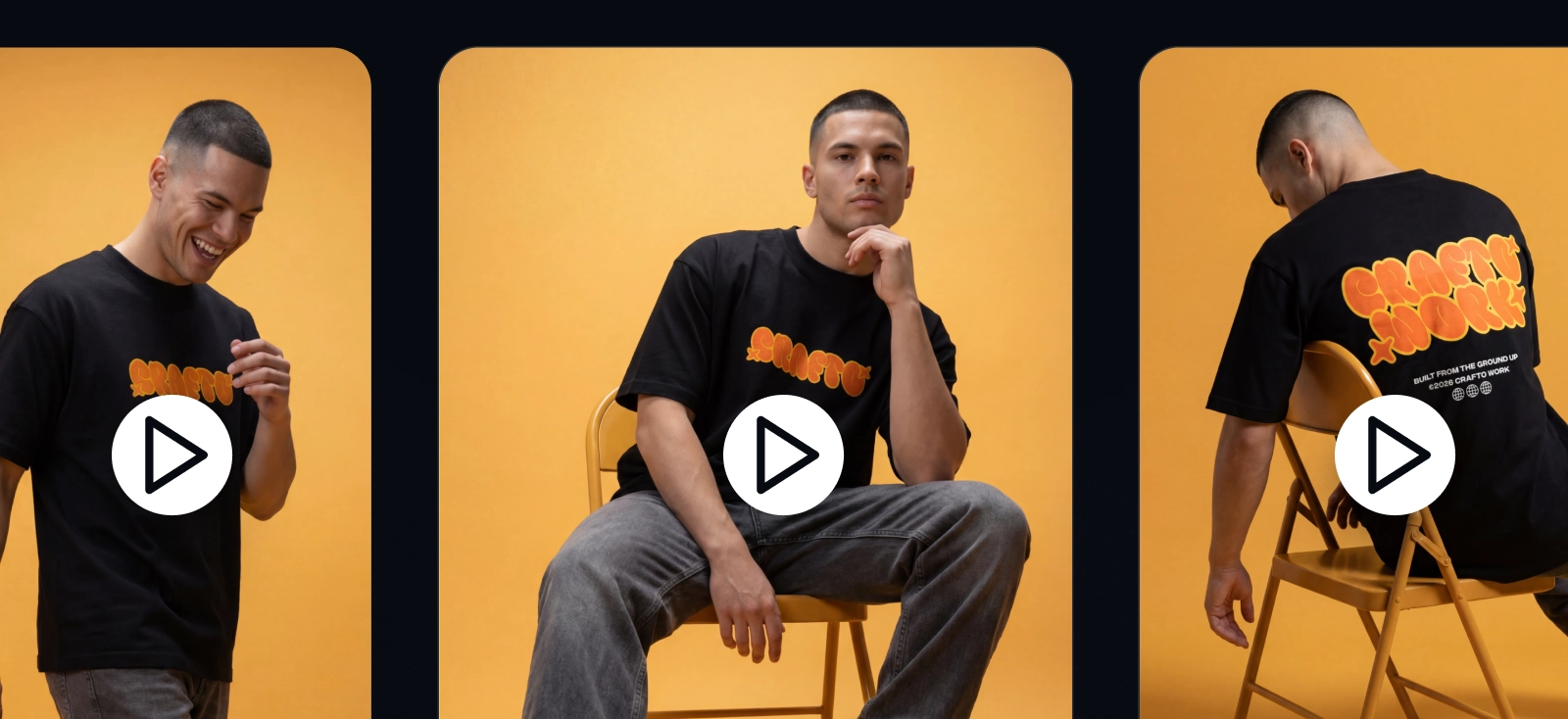
If your AI video character looks great in one clip but slightly different in the next, you’ve already hit the hardest part of AI video: continuity.
You might start with a shot that looks almost perfect, but then you generate the next scene, and the character comes back slightly off. It doesn’t look the same.
For a long time, the answer was to write longer prompts. Character bibles, identity blocks, DNA prompts: more traits, more adjectives, more reminders to keep the same character-defining details.
And yes, that still helps. But relying strictly on text-based character bibles is no longer the most efficient method in 2026. Text can describe a character, but it can’t hold the model to a face.
To keep AI video characters consistent, you need to give the model something firmer to work with: a clear reference image, a locked style, controlled motion, stable lighting, and defined first and end frames.
This AI video character consistency workflow 2026 breaks down how to build video sequences that feel connected from one clip to the next, without relying on prompt luck alone.
Why AI video characters drift in the first place

To fix character drift, it helps to understand why it happens.
AI video models don’t treat your character like an actor returning to set. They don’t automatically know that the person in clip two should match the person in clip one. Instead, they rebuild the character from the inputs you give them: your prompt, reference image, lighting, camera angle, motion, style, and sometimes the first or final frame.
That means every new generation gives the model a little room to reinterpret the character.
For a single clip, that room may not matter much. But AI video is rarely built from one clip, it’s usually when you build a sequence. A 30-second video might be made from several short generations. A longer AI video can require dozens of individual shots. Some long-form workflows even plan around 40–80 separate clips for a 15-minute video, each one generated as its own scene.
That is where drift compounds.
A tiny change in one clip becomes a new version the workflow has to deal with. Most of the time you’d be dealing with:
- A morphing face (different jawline, different hair)
- A changing outfit (different shirt, no glasses, etc)
- Fluctuating age (looking slightly younger or older)
By the time you stitch everything together, the issue no longer feels like one weak output. It feels like the character slowly slipped out of the project.
This is why long, detailed prompts can help, but rarely solve the whole problem. A prompt gives the model a description. A reference gives it evidence.
That is the shift behind a stronger AI video character consistency workflow: stop asking the model to remember your character through words alone, and start giving it visual anchors it can return to.
The 3 pillars of AI character consistency
AI character consistency does not come from one perfect prompt. It comes from reducing how much the model has to guess.
Every time you change the face reference, camera movement, lighting, or visual style, the model gets more freedom to rebuild the character. Sometimes that freedom creates a better shot. Other times, it just brings out a different character.
A stronger AI video character consistency workflow is built on three controls: visual anchoring, motion restraint, and environmental stability
1. Visual anchoring over text anchoring
Text is useful, but it is still flexible.
A prompt like “a young woman with a sharp black bob, brown eyes, and a red jacket” gives the model a direction. It does not give the model one exact person. There are hundreds of possible faces that could match that description, and the model can choose a slightly different one every time.

A visual reference narrows the choice.
When you give the AI a clear image of the character, you are giving it facial structure, proportions, hairstyle, clothing, expression, and style in one place. The model no longer has to rebuild the character entirely from language. It has something concrete to compare against.
That is why visual anchoring always beats text anchoring for AI character consistency. A character bible can remind the model what to include. A reference image shows the model what must stay intact.
This becomes even stronger when you define exact visual start points, such as a first frame. Instead of asking the model to imagine how the clip should begin, you show it. The face, pose, outfit, lighting, and framing are already set before motion begins.
That small decision can save a lot of regeneration later.
Use a reference image where the character is easy to read. Clear face, visible outfit, simple lighting. If the reference is too dramatic, cropped, or shadow-heavy, the model has less reliable information to work with.
2. Motion restraint: keep the character from breaking mid-shot
Movement is where AI character consistency often starts to wobble.
The model may preserve the character well in a still frame, then lose them once the camera moves, the face turns, or the body starts doing too much at once. Fast motion forces the model to invent more information between frames, and that is where identity can start to stretch.
Aggressive camera movement makes this worse. A spinning camera, fast zoom, whip pan, or dramatic handheld orbit does not just change the shot. It changes how much of the character the model needs to reconstruct from moment to moment.
That is why motion restraint matters.

If the character needs to stay recognizable, direct the movement with intention. A slow push-in is safer than a chaotic camera swing. A small head turn is safer than a full rotation. A simple hand gesture is safer than fast hands crossing the face.
This does not make the video boring. It makes the motion usable.
In AI video, control is often more valuable than spectacle. The shot can still feel alive, but it should not ask the model to solve too many problems at once.
When testing a new character, start with restrained motion first. Once the face, outfit, and style hold steady, you can gradually test more complex movement.
3. Environmental and lighting stability: protect the face from being rebuilt
Lighting is not just atmosphere. In AI video, it can change how the model reads the character.
A face in soft daylight gives the model one set of shadows, contours, and skin tones. Move that same character into neon blue light, harsh overhead light, or deep cinematic shadow, and the model may reconstruct the face differently.
That is how a character can look older in one clip, younger in another, sharper in one scene, softer in the next. The model is not only changing the mood. It may be rebuilding the geometry of the face based on the new lighting conditions.

This is why lighting stability is a major part of AI character consistency. If you want the same character across multiple clips, keep the visual environment steady before you start making bigger changes.
Use consistent descriptors for:
- Light direction
- Color temperature
- Time of day
- Background setting
- Camera distance
- Overall style
For example, “soft daylight, natural shadows, realistic editorial style” should not suddenly become “neon lighting, dramatic blue shadows, glossy cyberpunk style” unless you are prepared to reinforce the character with a strong reference.
You can absolutely change environments. But when the setting or lighting changes, give the model stronger anchors so it does not rebuild the character from scratch.
If a lighting change is important to the story, use a clear first frame or reference image for that new setup. Do not ask the model to preserve the character and invent a completely new lighting world at the same time.
The complete AI video character consistency workflow
Once you understand why characters drift, the workflow becomes clearer: don’t ask the model to remember everything from a prompt. Build a visual system it can follow.
To keep your character consistent across clips, you need to create the character first, lock the look, control the motion, and compare each output before exporting. That is the difference between prompting one nice clip and building an actual AI video character consistency workflow.
Here’s how to do it.
Step 1: Establish the visual baseline with an AI Image Generator
Before you generate video, create the character as a still image.
This is your hero reference image: the clearest, most reliable version of your character. It should show the face, outfit, hairstyle, proportions, and overall mood you want to carry through the rest of the video.
This step is crucial because a video model needs something stable to follow. If you start with text-to-video right away, your character only exists inside that first clip. You may get a beautiful result, but it is not yet a controlled identity. It is one version the model happened to generate.
A high-quality hero reference image gives you a baseline.
It answers the important questions before motion enters the picture:
- What does the face look like?
- What outfit needs to stay consistent?
- What is the character’s silhouette?
- What style are we working in?
- What aspect ratio should the video follow?
- What mood should the lighting support?

In Kittl, you can create this directly with the AI Image Generator, then keep the image on the same canvas as the visual anchor for the rest of the workflow. That means the face, outfit, and aspect ratio are not floating around in a prompt doc or buried in your downloads. They stay visible while you build the sequence.
A good hero reference prompt might look like this:
Cinematic portrait of a woman in her late twenties with a short black bob, warm brown eyes, light freckles, and a cropped red denim jacket. Soft daylight, clean background, realistic editorial style, vertical 9:16 composition, natural expression.
The goal is not to make the most dramatic image. The goal is to make the most usable one.
A moody side profile might look great as a poster, but it will not always help the model preserve the face in motion. For AI character consistency, clarity beats drama. Choose an image where the face is readable, the outfit is clear, and the lighting does not hide the details you need later.
Learn more about AI Image Generation in Kittl with our article here: AI image generation complete guide for designers in 2026.
Create two or three hero image options before committing. Once you start generating clips, changing the character’s base look becomes much messier.
Step 2: Lock the aesthetic with Style References
Once the character looks right, lock the visual world around them.
This is where many AI video sequences usually start losing its touch. The face may stay close, but the art style shifts. One clip looks like cinematic realism. The next starts leaning into glossy 3D animation. Another turns soft and illustrative. Suddenly, the character does not feel like they belong to the same world anymore.
Style consistency is part of AI character consistency.
The art style controls how the model renders skin, fabric, shadows, hair, depth, texture, and background detail. A realistic character and a 3D animated character are not just different finishes. They are different visual systems. If the system changes between clips, the identity can start changing with it.
That is why the hero reference image should also become your style anchor.
In Kittl, you can save the base image as a custom style reference, so future generations keep the same overall look and feel. This helps prevent the sequence from drifting from photorealism to illustration, from cinematic realism to cartoon polish, or from soft editorial lighting to something that feels like a different project.

The process is simple:
- Select your base character image on the canvas.
- Right-click and choose Save as Image Gen Style.
- Use that custom style for future image generations.
- Keep the next prompts simple, so the style reference can do its job.
You can also upload a reference image through the AI panel by using Upload Style. Kittl then processes the image as a custom style you can reuse in later generations.
The important part is understanding what a Style Reference does. It does not copy every object from the original image. It carries the visual language: lighting mood, texture, rendering style, color behavior, and overall aesthetic.
So if your approved character image is cinematic realism, you do not need to keep stuffing every prompt with style instructions. Let the Style Reference carry that weight.
Instead of:
Same woman, cinematic, realistic, editorial, soft skin texture, film-like, dramatic but natural, not cartoon, not illustration, not glossy, not 3D.
You can keep it cleaner:
Same character walking through a quiet city street, medium shot, soft daylight
The reference holds the look. The prompt directs the scene.
Do not fight your own Style Reference. If you save a cinematic realistic base image, avoid adding new style directions like “anime,” “watercolor,” or “plastic 3D” unless you want the sequence to shift.
Step 3: Execute the First Frame / End Frame generation
This is the core of the workflow.
A normal text-to-video prompt asks the model to invent too much at once. It has to decide how the clip starts, how the character moves, what changes during the motion, and where everything ends. Even with a strong reference, that leaves room for hallucination.
First Frame / End Frame generation gives the model stricter boundaries.
Instead of asking the AI to imagine the whole clip, you define the opening and the landing point. The first frame shows exactly where the clip begins. The end frame shows exactly where it should arrive. The model then generates the motion between those two locked visual states.
That is the key: it interpolates between frames.
With models like Veo 3.1, this can seriously reduce the visual wandering that causes character drift. The model still generates motion, but it is no longer inventing the entire shot from a loose description. It has to connect two defined states.
Learn more about Google Veo 3.1 in our article here: Google Veo 3.1 explained: Core features, capabilities, & how to use it.
For character consistency, that changes everything.
If the same face, outfit, style, lighting, and framing are present in the first and end frames, the model has fewer chances to morph the face, change the wardrobe, drop accessories, or drift into a different aesthetic halfway through the clip.
That is why this feature matters so much in Kittl’s AI video workflow. Our data shows that almost 10K creators use this specific Kittl feature monthly because it helps solve consistency where it usually breaks: inside the clip itself.
Here’s a simple way to use it.
After you choose to create an AI Video canvas, the AI Video Generator toolbar will pop up below. From here, you choose your start frame. This could be your hero reference image or another frame that clearly shows the character at the beginning of the action. Make sure the face, outfit, lighting, and aspect ratio match your approved direction.

Then create the end frame. This should show the same character after a small, controlled change. For example:
- Neutral expression to slight smile
- Looking away to looking at camera
- Hand down to hand holding a product
- Standing still to taking one step forward
- Character on the left to character pointing toward text on the right
Keep the change realistic. If the first frame shows a close-up in soft daylight and the end frame shows a wide shot in neon rain, you are asking the model to solve too many problems at once.
Next, write the prompt like a direction note, not a full character biography.
For example:
The same character slowly turns toward the camera and gives a small confident smile. Keep the same face, hairstyle, red denim jacket, soft daylight, and realistic editorial style. Smooth controlled motion. No wardrobe changes. No dramatic camera movement.
Notice what the prompt is doing. It is not carrying the whole identity. The frames already do that. The prompt simply tells the model how to move.
A good First Frame / End Frame setup has three parts:
- First frame: start here
- End frame: land here
- Prompt: move like this
That is much stronger than asking one prompt to hold the character, the shot, the motion, and the ending all at once.
Use First Frame / End Frame generation for the moments where consistency matters most: head turns, expression changes, product gestures, character entrances, and transitions between shots. Keep the action controlled first. Once the identity holds, you can push the motion further.
Step 4: Sequence clips on the canvas before exporting
This is where the workflow saves you from a very familiar kind of creative pain.
In many AI video workflows, you generate a five-second clip, export it, bring it into CapCut or Premiere, place it next to another clip, and only then notice the character does not quite match. So you go back, regenerate, export again, rename another file, drag it into the timeline, compare again, and hope the next version behaves.
That is a lot of friction just to answer one question: does this clip belong next to the others?
For AI video character consistency, that question needs to happen earlier.
In Kittl, you can generate, play back, and compare clips side by side on the Infinite Canvas before final export. Think of it less like a timeline editor and more like a smartboard for your sequence. Your hero reference, style reference, first frames, end frames, alternate takes, and generated clips can all live in one place while you decide what actually works.

That changes the review process.
Instead of checking continuity after everything has already been exported, you can compare the clips while the workflow is still flexible. Place version one next to version two. Keep the best take near the reference. Move weaker generations aside. Use a strong frame from one clip to guide the next.
Look for the details that usually break the sequence:
- Does the face still feel like the same person?
- Did the outfit keep its shape?
- Did the style stay consistent?
- Did the lighting shift too much?
- Does the motion feel believable next to the previous clip?
- Does one generation look like it came from a different project?
This is not about replacing a timeline editor for final cutting. It is about avoiding the slow loop of exporting short clips just to check whether they match.
By sequencing on the canvas first, you can solve continuity before the final edit. You get to see the system, not just the single clip.
Keep your near-misses on the canvas. A failed video might still have one useful frame, pose, lighting setup, or camera angle you can reuse as a better anchor for the next generation.
Troubleshooting common character consistency failures
Even with a strong AI video character consistency workflow, some generations will still miss. That is normal. The useful move is not to rewrite the entire prompt every time. It is to figure out which part of the signal broke.
Most character consistency problems come from one of four places: the reference is too weak, the motion is too ambitious, the lighting changed too much, or the prompt is giving the model mixed instructions.
Here are the most common issues and how to fix them.
The face morphs during a head turn
This usually happens when the model has to invent too much of the face from a new angle.
A front-facing reference image may give you a strong starting point, but it does not always tell the model what the character should look like from the side. So when the head turns, the model fills in the missing structure. That is where the jawline, nose shape, cheekbones, or eye spacing can start to shift.
Fix it: use a three-quarter reference image, reduce the head movement, or define a clearer end frame.
Instead of asking for:
The character turns fully from left to right while smiling at the camera.
Try:
The same character makes a subtle three-quarter head turn toward the camera. Keep the same facial structure, hairstyle, outfit, and lighting. Smooth controlled motion.
If the face still changes, split the motion into smaller steps. A 10-degree turn is easier to preserve than a full rotation.
When identity matters, avoid hiding the face mid-motion. Hair, hands, props, or heavy shadows crossing the face can make the model rebuild it.
Accessories disappear or change

This usually happens when the model has to invent too much of the face from a new angle.
Glasses, hats, earrings, necklaces, badges, and small props are easy for AI models to drop. They often look like details, not identity markers.
The problem gets worse when the accessory is partly hidden, only visible in one frame, or small compared to the rest of the scene. The model may decide it is optional, especially during movement.
Fix it: make the accessory visible in both the first and end frames. Then reinforce it clearly in the prompt.
For example:
The same character keeps the round black glasses on throughout the entire clip. Glasses remain visible and unchanged. No accessory removal.
If the accessory is important to the character, treat it like part of the silhouette. A bold hat, clear glasses, or recognizable jacket patch will be easier to preserve than a tiny detail hidden in shadow.
The outfit shifts between clips
Outfit drift is one of the fastest ways to break AI character consistency.
A jacket changes cut. A shirt switches color. A sleeve length moves. A pattern appears in one clip and disappears in the next. Nothing feels dramatic in isolation, but the sequence starts to look stitched from different versions of the same character.
This often happens when clothing is described too loosely.
Fix it: keep the wardrobe language specific and consistent across every related prompt.
Instead of: “casual jacket”
Use: “cropped red denim jacket with silver buttons over a plain white shirt”
Instead of: “stylish outfit”
Use: “black turtleneck, high-waisted beige trousers, thin gold hoop earrings”
If you use First Frame / End Frame generation, make sure the outfit is visible in both frames. Do not expect the model to preserve a jacket detail it can barely see.
Give important clothing details one clear name and reuse it. “Cropped red denim jacket” should stay “cropped red denim jacket,” not become “red coat,” “scarlet jacket,” or “casual outerwear” in the next prompt.
Lighting makes the character look older or younger
Fluctuating age is often a lighting problem disguised as an identity problem.
Soft daylight may make a character look younger. Harsh overhead light may sharpen the face. Deep shadows can exaggerate cheekbones, jawlines, or eye sockets. Neon color can shift skin tone and make the model rebuild the face differently.
So if your character suddenly looks older, younger, sharper, or softer, check the lighting before blaming the character prompt.
Fix it: keep lighting language stable across related clips.
For example:
Same soft daylight as the reference image, natural shadows, consistent skin tone, realistic editorial style.
If you need a major lighting change, create a new reference frame for that setup first. Do not ask the model to invent a new lighting world and preserve the exact same face from memory.
The style changes from cinematic realism to illustration

Style drift can feel subtle at first, but it changes everything.
One clip may have natural skin texture and cinematic depth. The next may look smoother, shinier, more cartoonish, or more like a 3D render. The character might still be recognizable, but the video no longer feels like one piece.
Fix it: return to your Style Reference and simplify the prompt.
Do not stack conflicting style words like:
cinematic realistic anime 3D claymation editorial illustration
That gives the model too many visual systems to choose from.
Use a cleaner prompt:
Same character, same cinematic realistic style, soft daylight, natural skin texture, medium close-up.
Let the Style Reference carry the look. Let the prompt direct the scene.
The character looks different in wide shots
Wide shots are harder because the face becomes less important in the frame. The model may prioritize the body, background, outfit, or overall composition instead of preserving facial details.
That does not mean wide shots are off-limits. It means the character needs stronger readable anchors.
Fix it: use a recognizable silhouette, outfit, hairstyle, or pose.
For example:
Same character with short black bob, cropped red denim jacket, slim silhouette, full body visible, walking slowly through the scene.
If the face is too small to carry the identity, the character-defining details need to do more work.
For wide shots, consistency often comes from silhouette first, face second. Make the character recognizable even before the viewer sees the details.
How to make more clips without letting the character unravel
One consistent clip is a win. Five consistent clips is a workflow.
That is where AI video character consistency gets harder. Not because the model suddenly gets worse, but because you keep changing the conditions around the character.
- A close-up asks the model to protect the face.
- A wide shot asks it to rebuild the body.
- A product gesture asks it to solve hands, fabric, and motion.
- A new location asks it to reinterpret the lighting, color, and background.
Generate all of that in random order, and the character starts getting pulled in different directions.
So don’t generate randomly. Batch your shots by what the model needs to solve.
- Group your close-ups together.
- Then your three-quarter shots.
- Then your full-body shots.
- Then your product interactions
- wide scenes,
- and transitions.
This keeps the visual conditions tighter for longer: same reference, same style, similar framing, similar lighting.
If your video needs four close-ups, generate those close-ups as a set. Pick the one where the face holds best. Then move to the next shot type.
You can still arrange the story later. The point is to stop making the model renegotiate the character every time you press generate.
Test the shot before you spend your best render on it
Not every generation deserves final-render energy.
If you’re still figuring out the framing, motion, or timing, use faster generations first. Models like Veo 3.1 Fast are useful here because they let you check whether the idea actually works before you spend more time polishing it.
This is not about lowering the quality bar. It is about not wasting your strongest output on an unproven shot.
First, test the move.
Then, refine the take.
If the head turn breaks the face in the draft, it will probably break the face in the polished version too. Fix the structure before you chase the finish.
Catch the drift before it reaches the edit
The worst time to discover character drift is after export.
By then, you’re already in cleanup mode: comparing files, replacing clips, dragging new versions into a timeline, and trying to remember which one had the better face but the worse jacket.
Do the continuity check earlier.
Keep your approved takes close to the hero reference. Compare clips while they are still on the canvas. Look at the boring details because those are usually where the sequence breaks:
- Face shape
- Hairline
- Jacket structure
- Accessories
- Skin tone
- Lighting temperature
- Style finish
If a clip fails, you can regenerate that specific shot instead of disturbing the whole sequence.
That is the point of a real AI video character consistency workflow: not avoiding every bad generation, but spotting the weak ones before they cost you more time.
Create an “approved sequence” row on the canvas. Keep only the strongest takes there. Everything else can sit nearby as a reference, a backup, or a useful mistake.
Key takeaway: stop guessing, start referencing
Character consistency is not about writing the longest prompt in the room.
It is about giving the model fewer chances to invent the wrong thing.
A prompt can describe the character. A reference can prove the character. A first frame can lock the start. An end frame can lock the landing point. Put those together, and AI video stops feeling like a slot machine with nice lighting.
That is the shift behind a better AI video character consistency workflow in 2026: less prompt luck, more visual control.
Start with the face. Protect the style. Keep the motion honest. Check the clips before the edit. Then build the sequence from frames the model can actually follow.
Not more guessing.
Better anchors.
FAQ
What is character drift in AI video?
Character drift is when an AI-generated character changes across clips or frames. It can show up as morphing faces, changing outfits, missing accessories, shifting skin tone, or fluctuating age. The character may still look close to the original, but not consistent enough to carry a full sequence.
The best AI video character consistency workflow 2026 is built around visual anchors instead of text-only prompting. Start by creating a high-quality hero reference image, lock the art style, use First Frame / End Frame generation, keep motion and lighting controlled, and compare clips side by side before export. In Kittl, you can build this workflow with the AI Image Generator, Style References, AI Video Generator, and Infinite Canvas.
Why is AI video character consistency harder than AI image consistency?
AI image generation only needs to solve one frame. AI video has to preserve the same character across movement, time, camera shifts, lighting changes, and multiple frames. That gives the model more chances to reinterpret the face, outfit, or style.
How do I create a consistent AI character for video?
Start with a clear hero reference image. In Kittl, you can create one with the AI Image Generator, then use it as the visual baseline for future clips. Keep the face, outfit, style, and aspect ratio consistent before moving into video generation.
Can I make a consistent AI character without using my own photo?
Yes. You can create a fictional character from scratch with Kittl’s AI Image Generator, then use that image as the reference for AI video. The reference does not need to be a real photo. It just needs to be clear, stable, and easy for the model to follow.
What kind of reference image works best for AI video characters?
A clear three-quarter portrait usually works better than a dramatic side profile. The face should be readable, the outfit should be visible, and the lighting should not hide important features. If you are creating the reference in Kittl, keep it on the canvas so you can compare future clips against it.
Should I use one reference image or multiple reference images?
For a short AI video, one strong hero reference image may be enough. For multi-shot videos, multiple references can help. Try creating a front view, three-quarter view, and full-body view so the model has more information when the character turns, moves, or appears in wide shots.
How do Style References help with AI character consistency?
Style References help keep the same visual look across generations. In Kittl, you can save a base character image as a custom Style Reference, then use it to generate new images with a consistent aesthetic. This helps stop your character from shifting between cinematic realism, 3D animation, illustration, or other styles.
How does First Frame / End Frame generation help with character consistency?
First Frame / End Frame generation defines exactly how the clip starts and ends. The AI then creates motion between those two locked visual states. In Kittl’s AI Video Generator, this can help reduce face morphing, outfit changes, and style drift during the clip.
Is First Frame / End Frame better than frame chaining?
For many creators, yes. Frame chaining often means exporting the last frame of a clip, re-uploading it, and using it as the next reference. First Frame / End Frame generation is cleaner because you define the start and landing point before generating the clip, keeping the workflow more controlled.
Why does my AI character look different when I change the camera angle?
A new camera angle forces the model to infer parts of the face or body that may not be visible in the original reference. If your reference only shows the character from the front, the model has to guess what they look like from the side. A three-quarter reference image can help reduce that guesswork.
How do I keep clothing consistent in AI video?
Use specific wardrobe details and keep the wording consistent across prompts. “Cropped red denim jacket with silver buttons” is stronger than “red jacket.” Also make sure the clothing is clearly visible in the reference image, first frame, and end frame.
Can I keep a character consistent across different scenes?
Yes, but change one major variable at a time. If you switch the location, lighting, camera angle, and outfit all at once, the model has more room to rebuild the character. Keep the face, style, and wardrobe anchored while you introduce the new scene.
Why does my AI character look older or younger between clips?
Age drift often happens when lighting, shadows, skin texture, or facial softness changes. Harsh light can make the face look sharper or older. Soft light can make it look younger. Keeping lighting and style consistent helps reduce fluctuating age.
How long should each AI video clip be for better consistency?
Shorter clips are usually easier to control. A five-second clip with one clear motion often holds identity better than a long clip with several actions, camera changes, and lighting shifts. For longer videos, build the story from shorter controlled clips and compare them on Kittl’s Infinite Canvas before export.
Can I make a full AI video sequence in Kittl?
Yes. You can create the character reference with Kittl’s AI Image Generator, lock the aesthetic with Style References, generate controlled clips with the AI Video Generator, and compare outputs side by side on the Infinite Canvas before exporting your final sequence.
Do I need to train a LoRA for AI character consistency?
Usually, no. LoRA training can help advanced users who need the same character across many projects, but most creators can start with a strong reference image, Style References, First Frame / End Frame generation, and canvas-based review in Kittl.

Shafira is a content writer who turns boring business talk into reads people actually enjoy. She grew up hoarding $1 novels in Singapore and writing hilariously bad fiction, but now she tackles content marketing with all that creative chaos since 2019. From blogs and newsletters to UX and SEO, she writes how she thinks: nerdy, honest, and a bit offbeat. She believes the best content is human-designed, not just plain text.