This week’s updates are all about helping you create faster, prepare better files, and turn your ideas into content that’s ready to use.
You can now export designs in CMYK for print, create AI videos with SeeDance 2.0, generate stronger visuals with GPT Image 2, discover video templates more easily from the Home dashboard, and work faster with improvements to the Layers panel.
What’s New in Kittl:
1) Export designs in CMYK for print
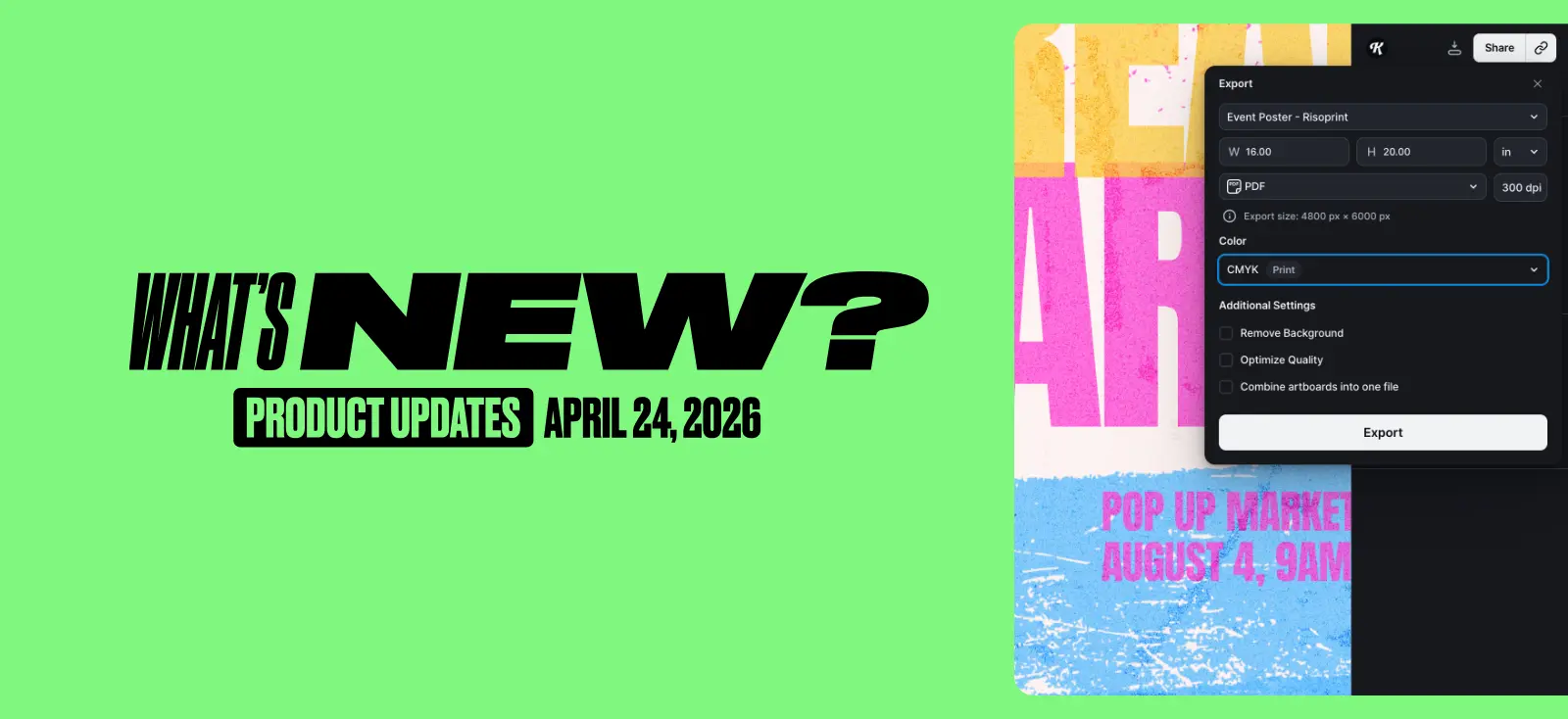
You can now export your Kittl designs in CMYK color format for PDF and JPEG, making it easier to prepare files for print.
Your design workflow stays the same — you’ll continue working in RGB inside Kittl. When you export, Kittl automatically converts your file to CMYK.
This helps reduce unexpected color shifts when creating files for merchandise, posters, packaging, stickers, print-on-demand products, and other printed designs.
How to export in CMYK
- Open your design
- Click Export
- Choose PDF or JPEG
- Select CMYK
- Export your file
Tips for better print results
- Export at 300 DPI for high-quality output
- Avoid extremely bright or neon colors
- Test print when possible
- Check gradients and transparency carefully
- Use strong contrast for important elements
Find more details here.
2) SeeDance 2.0 is now in Kittl
You can now create ads and social media videos in Kittl with SeeDance 2.0, making it easier to turn static product visuals into short, scroll-stopping videos for TikTok, Instagram Reels, paid ads, and social content.
This is especially useful for product-based businesses that need more video content but don’t have the time, budget, or setup for traditional shoots and editing.
Turn the designs, product photos, or mockups you’ve already created into motion directly inside Kittl.
With SeeDance 2.0, you can describe the type of video you want and generate a short cinematic video from your existing product visual.
SeeDance 2.0 works best with products, objects, and mockups. For the best results, use clean product visuals and avoid images with existing human faces.
To try it today, open your project in Kittl, choose your product image or mockup, describe the motion and style you want, generate your video, and download it for your social channels or ads.
Want to learn more?
Not sure where to start? Use our Seedance 2.0 templates
3) Discover video templates right from the Home dashboard
Video templates are now easier to discover in Kittl. On the Home dashboard, video artboard templates now play automatically, so you can instantly see how a design looks in motion before opening it.
Instead of judging video templates from a static preview, you can now see the movement, pacing, and style directly from the dashboard. This makes it easier to choose the right starting point for product videos, social posts, ads, and other animated content.
Just open the Home dashboard, browse the video template section, and look for the templates playing automatically.
4) GPT Image 2 is now available in Kittl
GPT Image 2 brings a big improvement to AI image generation in Kittl, especially for designs that need clear text, detailed prompts, and more consistent results.
The biggest upgrade is text rendering. You can now create images with more readable text directly inside the design — from product labels and packaging copy to pricing, disclaimers, ingredient lists, batch numbers, and other text-heavy visuals.
It also handles more detailed scenes better. That means you can create images with multiple objects, characters, labels, or visual elements and get results that follow your prompt more closely.
This opens up new possibilities for:
- Product labels and packaging
- Etsy and print-on-demand designs
- Mockup-style product visuals
- Brand identity concepts
- Mascots and character sheets
- Multilingual visuals
- Social posts, ads, and campaign assets
Overall, GPT Image 2 makes it easier to create polished, usable visuals directly in Kittl — especially when your image needs text, structure, or a consistent brand look.
5) Work faster with an improved Layers panel
We’ve made a few improvements to the Layers panel to make it easier to navigate and manage your designs.
Now, when you select an element on the canvas, the matching layer opens automatically in the Layers panel. This makes it easier to find exactly what you’re editing, especially in more complex designs with lots of elements.
Uploads are also easier to identify. When you upload an asset, its name is now carried over into the Layers panel, so you can quickly recognize your files instead of sorting through generic layer names.
We’ve also cleaned up the Layers panel overall, making it simpler and clearer to use while designing.

Kittl gives you the power of a world-class creative agency on one platform. Build product imagery, labels, packaging, and campaign assets in one place, with AI tools, a professional editor, and templates built by some of the best designers in their fields. Set your brand once, then create on brand every time.