This one’s special for us. Your team’s fonts live in Monotype Connect, the font management platform from Monotype, the company behind classics like Helvetica®, Avenir®, and Gotham®. Connect is where businesses organize and govern their licensed type. And with the new app, that library now works directly in Kittl. This guide gets your fonts into the editor and shows what to do with them once they’re in.

What you need
- A Monotype Connect subscription, with the Connect desktop app installed and logged in. The Kittl app reads your library through it, so it needs to be running.
- A Kittl account.
1) Add the app to Kittl
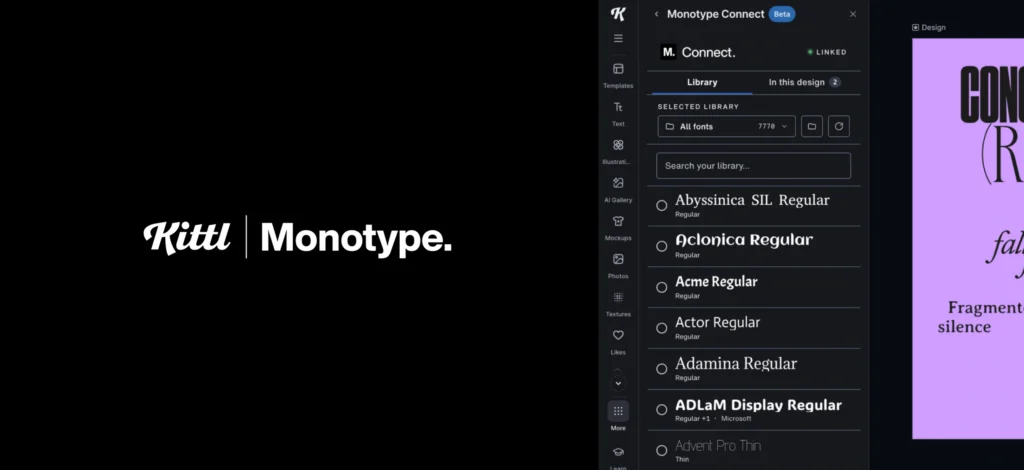
Open a design in Kittl, click Apps in the left sidebar, and add Monotype Connect. The app opens as a panel next to your canvas.

2) Connect your library
With the Connect desktop app running, your libraries load automatically. If the panel says “Connect isn’t running”, start the desktop app and you’re in. That’s the whole setup.
New to Kittl itself? Here’s the whole editor in ten minutes:

3) Add your first typeface
Open the Libraries view in the panel to browse everything that’s connected: team libraries, personal libraries, and subscription fonts, with search and filters. Select some text in your design, pick a font, and apply it in one click.
4) See every font in your design at a glance
Switch to the “In this design” tab. It lists exactly which fonts your text layers use, updating as you work: no hunting through layers.

5) Replace a font everywhere
This is the feature to lean on. Hit “Replace” next to any font in that list: the panel flips back to your library and asks you to pick a replacement. Choose one, confirm with “Replace everywhere”, and every text layer using the old font switches at once.

6) Put them to work
Getting the fonts in is the setup. This is what they came for:
- Text effects and transformations. Kittl’s text tools were built for exactly this: warp, arch, flag, and decorate your type. Your licensed fonts work with every effect, and everything stays editable at all times: swap the font or rewrite the text, and your effects stay exactly as you built them.
- Iterate with replace-everywhere. Build the design once, then cycle your licensed alternatives through it. Because the swap hits every text layer at once, comparing directions costs seconds, not rebuilds.
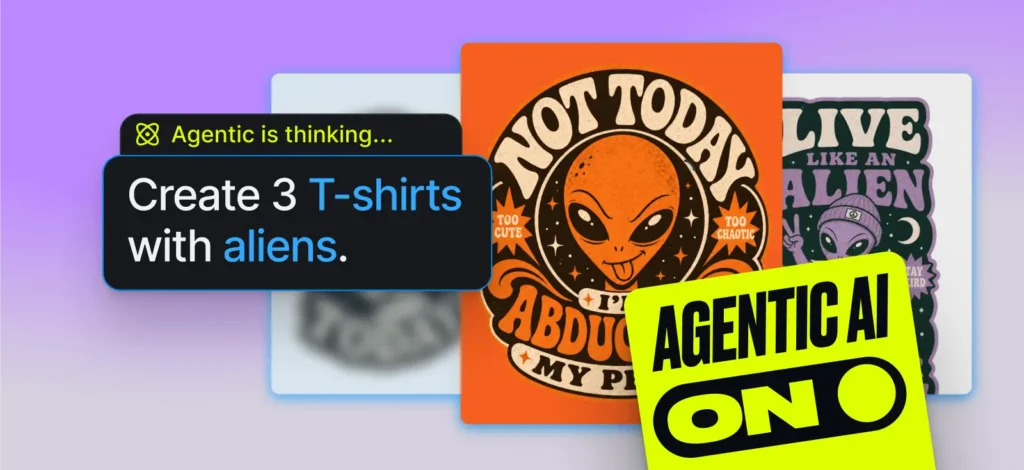
- Remix with AI. Set your type, then bring in Kittl’s AI: generate scenes and imagery around your text, or restyle it into custom artwork. And with Kittl Flows, that treatment becomes a repeatable pipeline you can run every future design through.
- Lock it into your Brand. Save your licensed fonts to your Brand in Kittl and they become the default starting point for your whole team.
And here are the text effects and transformations in action:
And how Kittl Flows turns one treatment into a repeatable pipeline:
Key takeaways
- Your Monotype Connect library works in Kittl through the Connect desktop app: keep it running, your fonts are there.
- The “In this design” tab plus “Replace everywhere” is the fastest way to explore type directions on a real layout.
- Your licensed fonts work with Kittl’s text effects, AI, and Brands like any other font in your library.
Open a design, load your library, and swap your way to the right typeface.
New to the partnership? Read the announcement: Deepening the Kittl × Monotype partnership

Kittl gives you the power of a world-class creative agency on one platform. Build product imagery, labels, packaging, and campaign assets in one place, with AI tools, a professional editor, and templates built by some of the best designers in their fields. Set your brand once, then create on brand every time.