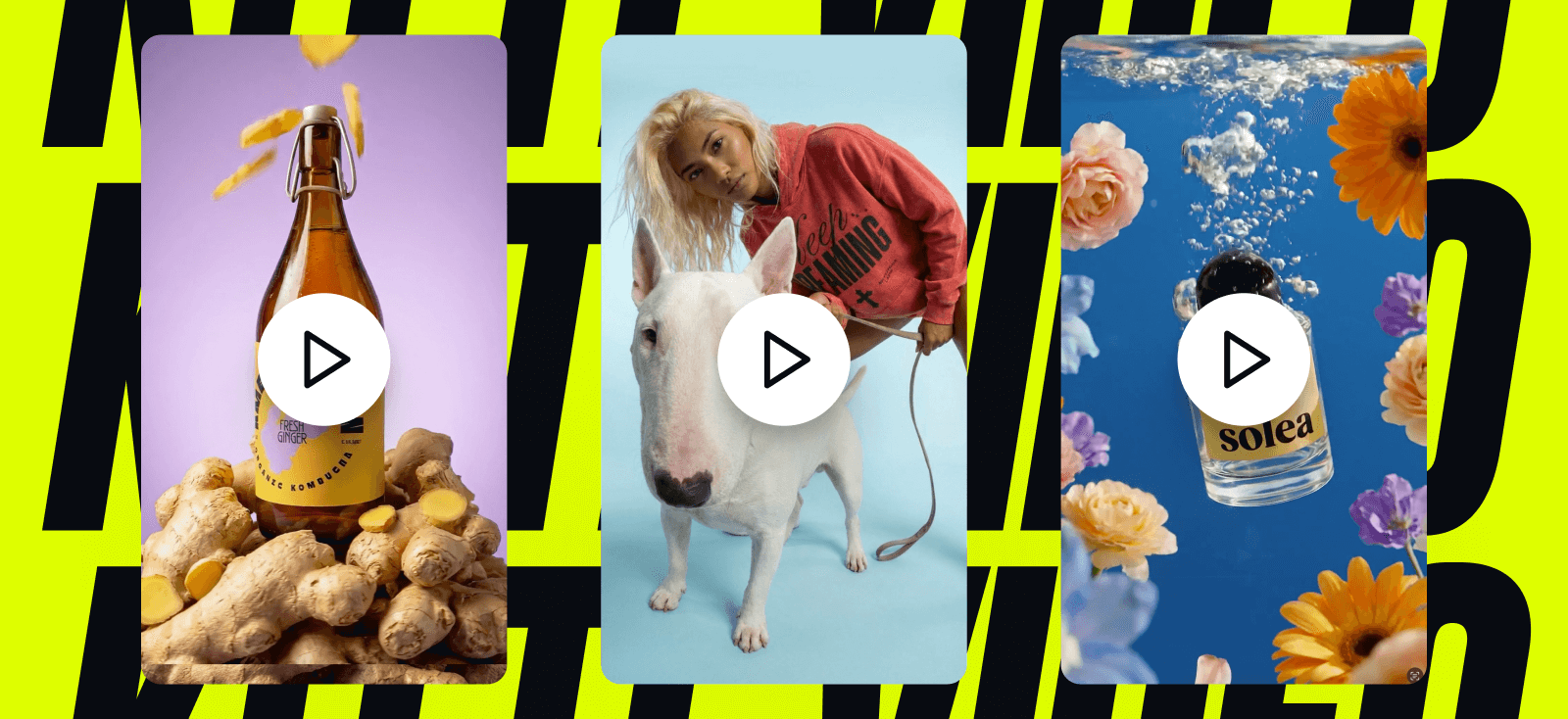
It’s official. Motion is part of the canvas now.
Today we’re launching Kittl Video — a new way to add movement to your designs right inside the same canvas you already use.
Design and motion finally live side by side, so you can go from layout to output without breaking your flow. Make a headline move, bring a product scene to life, or turn a static promo into a scroll-stopper.
Same canvas, same design control, now with motion.
Why we built Kittl Video
Content is moving faster than ever. The pressure is real: publish more, test more, and fight harder to get noticed every day.
That’s why video is no longer optional, especially on social media. It’s one of the fastest ways to get noticed and drive results. In Wyzowl’s 2025 report, 93% of marketers say video delivers good ROI, and 84% say video directly increased sales.
But making a design move still feels harder than it should. Getting started often means learning motion tools, working in timelines, and jumping into another workflow.
The same report shows the biggest barrier is that most people don’t know where to start. Many also say they don’t have enough time to create motions for their designs.
So we built Kittl Video to close that gap: a straight path from design → motion in one canvas and no motion skills required.
What Kittl Video is
Kittl Video helps you turn a design into a short motion clip directly on your canvas.
Start with a design you’ve already made, add motion to text or images, or describe what you want in a prompt. Generate a short clip, iterate with variations, then export when it’s ready for whatever channel you’re posting to today.
It’s built for speed + control: explore quickly, refine when it matters, and keep everything consistent with your design.
Your typography stays sharp, your layout stays intentional, and your motion stays on-brand.
What you can make with Kittl Video
Kittl Video is built for short, design-led moments, like:
- Social ads and promos
- Product highlights
- Launch announcements
- Brand posts that need extra energy
Best for 4–8 second clips and not long-form editing or timeline work.
How to use Kittl Video
- Open Kittl, and start a new design, create an image or simply animate text.
- Open the AI panel (same place you access Image Generation / Remix), then choose “Generate your video”.
- Choose your Start frame (required):
- Your design,
- An image,
- Text, or
- Smartboard.
- (Optional) Choose an End frame to guide how the motion should finish.
- Write your prompt describing the motion.
- Choose your settings:
- Model: Veo 3.1 / Veo 3.1 Fast / King 2.5 Turbo Pro / PixVerse v5 / Seedance 1.5 Pro / Grok Imagine Video / Kling Video 3.0
- Duration: 2s / 4s / 5s / 6s / 8s / 10s / 12s / 15s
- Audio: Optional (model-dependent)
- Click Generate → your video appears as a tile directly on the canvas.
- Export as MP4, either as a standalone video, or as part of your artboard.
You can check here in detail how the video works.
Prompt Presets for Video Gen
Video prompts are easy to overthink. One word can change the whole motion. That’s why we built 6 video prompt presets—ready-made starting points that help you get smoother, more predictable animations. You can select a preset directly inside the video prompt input and adjust from there.

5 quick tips to get the right prompt
- Use a modular structure. Write your prompt in clear blocks. You can start with: CAMERA, ACTION, AUDIO, TEXT.
Add new blocks if needed, or if you want to be more specific, such as LIGHTING, STYLE, SOUND EFFECTS, etc. - Describe camera motion using motion terms. In the CAMERA section, use clear language like push-in, pull-back, slow pan, subtle handheld.
- Describe the subject first, then the action. In the ACTION section, clearly state what the subject is, where it is, and then what it does.
- Focus on one main action. Too many actions at once often break motion consistency.
- Avoid over-directing. Fewer, clearer instructions usually produce smoother and cleaner motion.
Example on how to use this tips:
Prompt:
“Camera: perfectly static shot, camera frozen in place on a tripod
Action: The subject drops onto the rock surface. Subtle dust and small debris lift and disperse on impact.
SFX: Soft thud, faint grit scattering.”
Token usage for Video
Video generation costs more than image generation. Total cost depends on model + duration + audio.
Tokens per second:
| Model | Cost/sec (no audio) | Cost/sec (with audio) | Video lengths available |
|---|---|---|---|
| Veo 3.1 | 40 tokens/sec | 80 tokens/sec | 4s, 6s, 8s |
| Veo 3.1 Fast | 20 tokens/sec | 30 tokens/sec | 4s, 6s, 8s |
| King 2.5 Turbo Pro | 14 tokens/sec | — (no audio) | 5s, 10s |
| PixVerse v5 | 40 tokens/sec | — (no audio) | 5s, 8s |
| Seedance 1.5 Pro | 14 tokens/sec | — (no audio) | 4s, 6s, 8s, 10s, 12s |
| Grok Imagine Video | 16 tokens/sec | 16 tokens/sec | 2s, 5s, 6s, 8s, 10s, 15s |
| Kling Video 3.0 | 18 tokens/sec | 18 tokens/sec | 3s–15s |
Example: an 8s clip with Veo 3.1 + audio can cost up to ~640 tokens.
Show us what you make!
To celebrate the launch, we’re giving 500 free AI tokens to anyone in a paid plan who shares a Kittl Video and tags us. How to join:
- Animate a design with Kittl AI Video
- Post it on X, Instagram, TikTok, or LinkedIn and tag @Kittl
- Submit your post here
- We’ll add your tokens to your account
Motion isn’t a locked door anymore. It lives on the canvas.
Now go make something move.
Unsure where to start?
Browse our video templates, pick one, and make it yours. Edit the design, tweak the prompt, and regenerate new variations in seconds.

Kittl brings pro-quality templates, premium fonts, and AI-powered tools right to your browser. Drag, drop, customize, and share. Perfect for brands, creators, and anyone who loves great design. Kittl was made to give you seamless and fast design process.