This week’s updates are all about helping you move faster without losing control. Whether you’re building a recognizable brand, scaling print-on-demand designs, working with higher-quality AI models, or reusing assets across projects, these releases make the design process feel more connected and less repetitive.
Here’s what’s new in Kittl this week:
1. AI-Powered Brands
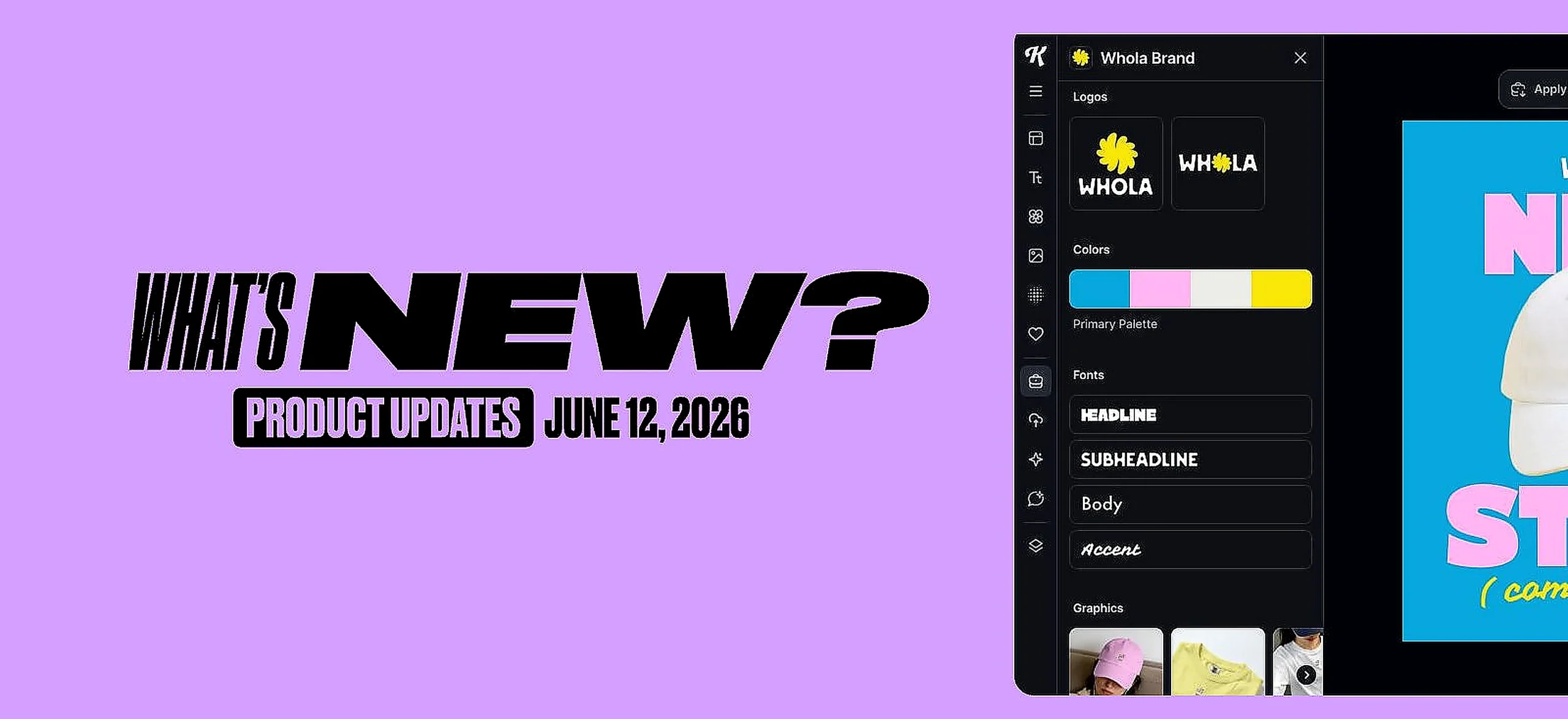
Brand Kits have been redesigned and are now simply called Brand.
The new Brand experience gives you one place to set up, manage, and apply your visual identity inside the Kittl editor. You can add your logos, brand details, colors, fonts, and graphics, then apply them to templates and designs with a single click.
Instead of manually changing colors and fonts every time you start a new design, you can now create your brand once and reuse it across your work.
Here’s how it works:
Setting up your brand only takes a few steps
- Open the Brand panel in the Kittl editor sidebar.
- Create a new brand from scratch or start with a preset.
- Add and customize your logos, brand details, color palettes, font styles, and graphics.
- Open any template or design and click Apply Brand Kit.
- Fine-tune the result, export, and publish.
Once your brand is set up, your colors and fonts are also easier to access while designing, so you can keep creating without constantly searching for the right style.
This is especially useful for business owners, product brands, and growing print-on-demand sellers who need every asset to feel consistent. Social posts, labels, packaging, shop listings, and product graphics can now follow the same visual direction without starting from scratch each time.
Brand colors and fonts are also surfaced directly in the color picker and font panel, so your brand feels like part of the design workflow, not a separate setup step.
This also lays the groundwork for future AI generation that can better respect your brand identity, so new designs do not just look good, they look like you.
2. Remix Styles
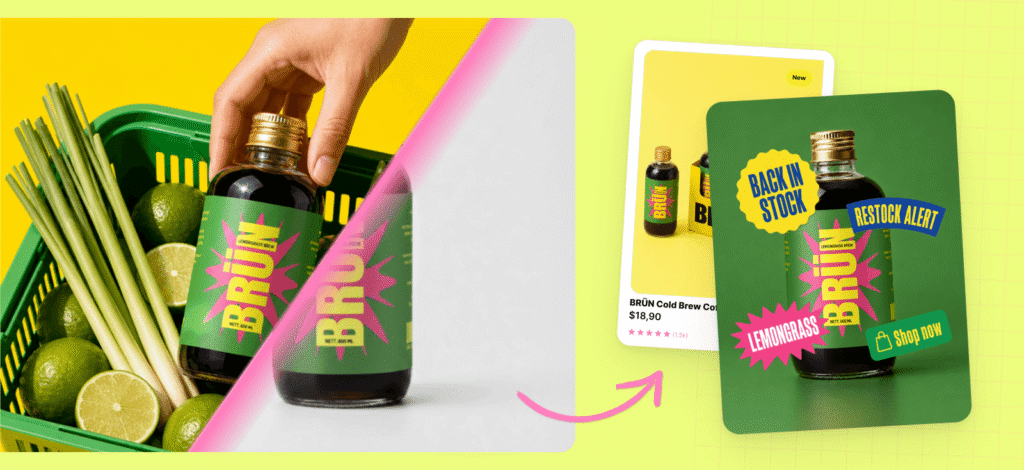
Remix Styles helps you create new design variations from something you already have.
Select anything on your board, choose a style, and Kittl generates a new result in the same place you’re already working. You can start from a photo, a piece of text, a vector, a template, or a full artboard.
There’s no prompt required. The reference and the selected style do most of the work. You can still add a prompt when you want more control, but you do not need one to get started.
This makes Remix Styles especially useful for print-on-demand sellers who need to move quickly.
You can use it to scale what is already working. Take a design that sells, remix it into a few new styles, and create fresh listings rooted in something you already know customers like.
You can also use it to test ideas faster. Start with a rough phrase, icon, or layout, apply a style, drop the result onto a mockup, and see whether it gets traction before investing more time.
Remix Styles works with:
- Images
- Text
- Elements and vectors
- Templates
- Full artboards
Depending on the style you choose, the output can be an image or an editable vector. That gives you flexibility to either move quickly with a finished result or keep refining the design after generation.
Here’s how it works:
- Open the AI Image panel or your AI Image board
- Select or upload a reference
- Choose a style and let Kittl generate
3. Ideogram 4.0 now in Kittl
Kittl now supports Ideogram 4, giving you access to a newer AI image model built for design-heavy workflows.
Ideogram 4 is especially strong when your output depends on clear text, structured layouts, and polished visual direction. It supports multilingual text rendering, precise object and text placement, color-palette guidance, and high-resolution 2K output.
For Kittl users, that means better results for designs where typography and layout really matter, like posters, merch graphics, packaging concepts, labels, ads, and product visuals.
If your design needs readable text or a more controlled composition, Ideogram 4 is a strong model to try first.

4. File storage indicator
We’ve added a new file storage indicator so you can better understand how much storage you’re using before you run into upload issues.
You can find it in the editor by going to:
Left menu → Uploads → top-right info icon
This gives you more visibility during asset-heavy workflows, especially when you are uploading lots of product photos, mockups, AI generations, or brand assets.
The goal is simple: fewer surprises, fewer failed uploads, and more trust in what’s happening behind the scenes.
5. Browse and reuse uploads more easily on the AI panel
You can now browse and select previously uploaded assets directly from a modal, without uploading the same file again when adding images in the AI input.
The new Browse Uploads modal brings together:
- Uploads
- AI Creations
- Brand assets
This makes it easier to reuse assets across AI workflows in the editor. Instead of breaking your flow to find or re-upload a file, you can pick from assets you already have and keep designing.
A smoother workflow from brand to final design
Together, these updates make Kittl faster and more practical for everyday creative work.
You can set up a brand once, apply it across designs, remix existing ideas into new directions, generate with a stronger AI model, and reuse assets without unnecessary upload steps.
Less repeated setup. More consistent output. Faster movement from idea to finished design.

Tobias Saul is a co-founder and chief product officer at Kittl, where he leads the vision for making professional design tools simpler, smarter, and more inspiring to use. With a background in typography, lettering, and graphic design, Tobias brings a deep appreciation for craft and detail to Kittl’s product and brand experience.