You wear every hat in the shop. Boss, designer, printer, customer support, delivery, accountant.
So when a client sends a blurry logo at 10 pm, you do not need more tools. You need shortcuts. You need a second brain that works fast, but listens to you.
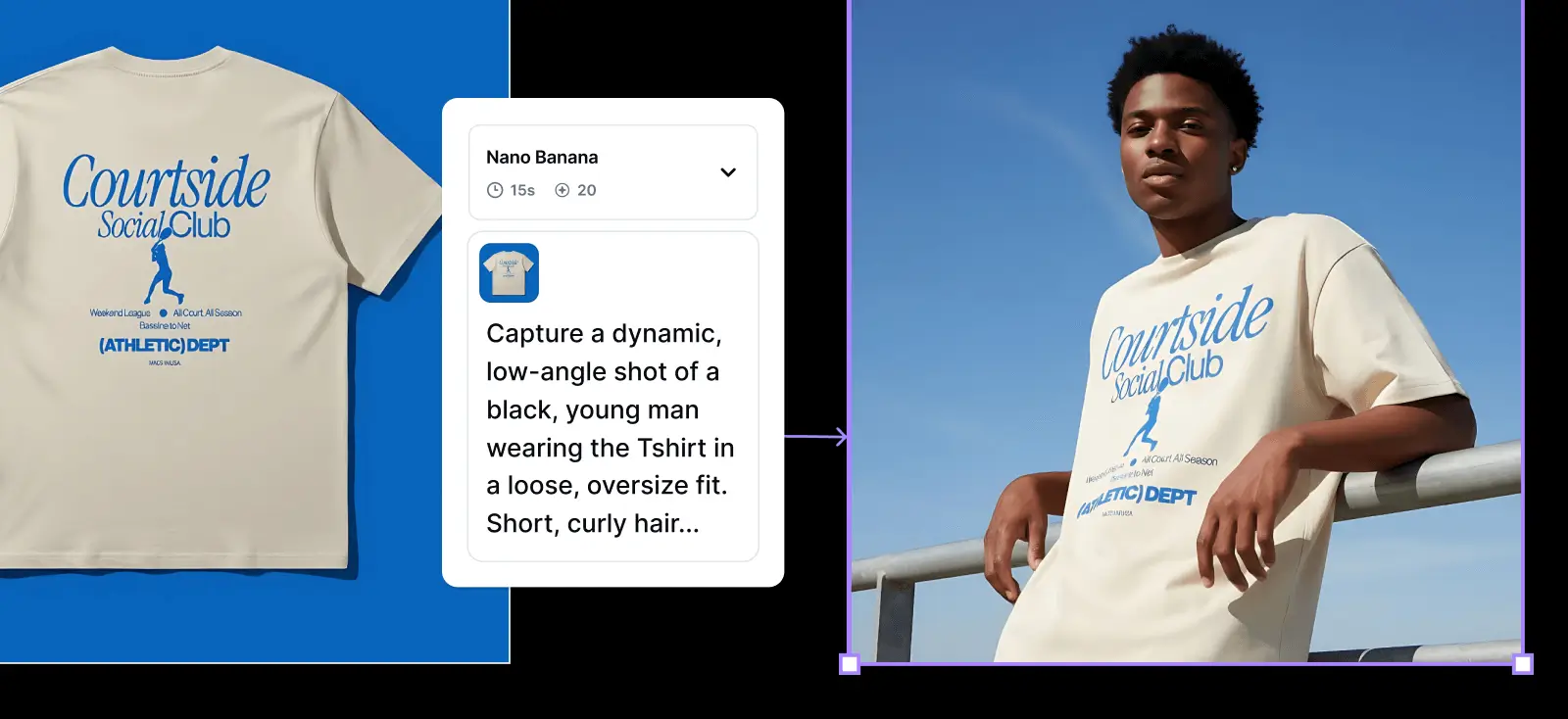
That is where Nano Banana inside Kittl helps. Not as magic. As practical helpers for four things you already do:
- Fix bad images
- Resize for every channel
- Try variations without starting over
- Draft full graphics from one idea
Let us walk through each, but from a solo business point of view, not big agency or fancy studios talk.
Meet Nano Banana inside Kittl
Nano Banana lives in two main places:
- Smartboard
- Remix image with AI
Nano Banana inside Kittl helps you:
- Take low quality photos or logos, and make them usable
- Stretch one design into many sizes, without ugly crops
- Change colors, scenes, and styles in seconds
- Turn rough ideas into posters, flyers, and social posts
You still decide the taste and style. Nano Banana just speeds up the boring parts. Very on brand for Kittl, which focuses on creativity, empowerment, and momentum.
Nano Banana tips #1: Enhance low resolution images so they actually look intentional

Here is the reason why you should take this tips seriously. A large study of real product photos on a social shopping site found something simple but powerful. When the main object was clear, the colors were warmer, and the contrast was strong, people were more likely to want to buy that product. (AIS eLibrary, 2014).
In other words, upgrading a blurry, flat photo into a clear, well lit one is not just “nice design.” It can directly influence whether someone feels confident enough to buy.
But, what if your assets are not good enough? You know the pain.
- A bird photo with nice framing, but crunchy pixels
- A still frame from a vintage video
- A logo screenshot from a decade old email
Instead of fixing each flaw by hand, you can re-render the image at higher quality, you can choose these two options:
Option A: enhance with a Smartboard
Use this when you want a clean before and after view.
- Drop the original image on an artboard.
- Add a Smartboard on the same artboard.
- In the Smartboard, write something like: “Enhance this photo so it is super crisp 4k resolution. Keep the same subject and colors.”
- Choose Nano Banana Pro 4K.
- Generate one image.
- Zoom into both images and compare details.
Look at:
- Eyes and hair
- Edges of clothing
- Noise in the background
You should see smoother gradients, sharper features, and fewer artifacts.
Option B: enhance with Remix
Use this when you do not want extra boards everywhere.
- Select the image on your artboard.
- Click Remix image with AI.
- In the prompt box, write for example: “Enhance this image to clear 4k. Remove the glass fracture effect so the person is clearly visible.”
- Match input resolution if you want the same crop.
- Generate.
- Compare, and keep the one that works.
You can also fix small details:
- “Add the same earring to the left ear as the right ear.”
- “Smooth the foreground streaks, but keep the clothing sharp.”
This is great when you have one photo shoot, and you need a hero image, a profile image, and a product close up out of the same visual.
Nano Banana tips #2: Resize scenes for every format without awkward crops
One vertical shot. Five formats to fill.
- 1:1 marketplace preview
- 4:5 feed post
- 16:9 banner
- Story format
- Print poster
Cropping usually cuts off something important. Nano Banana can extend your scene instead.
Turn a portrait into a 16:9 hero
Example: person in a yoga pose.
- Place the original portrait on an artboard.
- Select it, and click Remix image with AI.
- Prompt idea: “Make this image 16 by 9. Extend the environment naturally so the colors and light still match.”
- Use Nano Banana Pro 4K for detail.
- Match input if you want similar zoom, or choose a new ratio.
- Generate and place the new image in a 16:9 frame.
You keep:
- The same pose
- The same outfit
- The same general background
You gain extra breathing room for headlines, logos, and buttons.
Reveal “more of the scene”
Example: poster over a couch.
- Add the original wall and couch photo.
- Use Remix image with AI.
- Prompt example: “Make this image 16 by 9 so we can see more of the couch below the poster. Keep the same style and colors.”
- Generate and compare.
This is perfect for:
- Wall art mockups
- Furniture previews
- Home decor social content
Change aspect ratio of full designs
You can also adapt full posters, not just photos.
Example: tall film poster to square.
- Drop the poster into Kittl as an image.
- Select it, and choose Remix image with AI.
- Try a prompt like: “Turn this design into a one by one square. Keep all text and design pieces inside, including the subtext at the bottom.”
- Generate.
Nano Banana will:
- Re-stack elements into a square
- Keep the core hierarchy
- Sharpen the whole design
If something feels off, keep iterating:
- “Change the bottom text back to black.”
- “Add a subtle halftone texture on the photos.”
Use that square version for feeds, ads, and avatars while keeping the tall one for posters.
Nano Banana tips #3: Remix colors, elements, and styles without starting from scratch

This is where things get playful.
You can:
- Invert a color scheme
- Change furniture colors in a mockup
- Swap backgrounds in a product photo
- Extract one element from a full template
- Push designs into new art styles
All from the graphics you already have.
Invert a poster color palette
Example: poster on a wall above a couch.
- Select the poster image.
- Click Remix image with AI.
- Prompt example: “Change the poster colors to be inverted. Poster background black, text white. Keep the orange text the same.”
- Generate.
You will see:
- Background now dark
- Text reversed to white
- Orange accents untouched
The layout, type style, and couch stay consistent.
Match your mockup to your brand color
Take that same scene and push it further.
- Select the inverted scene.
- Remix again with: “Make the couch the same orange as the poster design. Keep everything else the same. Keep the couch pillows the same cream color.”
- Generate.
Now your wall art and furniture sit in the same palette. You can preview bold interior looks before a real shoot or a real purchase.
Remix Kittl templates in place
Templates in Kittl are full of smart structure.
You can keep that structure, and swap what matters.
Example: an event poster template.
- Open a poster template from Kittl.
- Add a Smartboard over the design.
- Prompt example: “Change the headline text to say ‘Pretty New Things’ in the same lettering style. Change the background image to a large red cedar tree. Keep the colors the same.”
- Use Nano Banana Pro 4K.
- Generate and review.
You get:
- A fresh headline
- A new background image
- The same dates, layout, and energy
Try another variation right after:
“Change the headline to ‘Super New Scenes’ in the same lettering style and colors. Change the background image to a vertical aerial shot of a black sand beach in Iceland.”
Run both, then pick your favorite.
Extract one element you love
Sometimes you just want the tree. Or the icon. Or the texture.
- Add another Smartboard on the same artboard.
- Prompt example: “Extract only the red cedar tree image from this poster so I can use it elsewhere. Remove all text.”
- Generate.
- Convert the result to an image, and drag it into other designs.
You can build a personal library of elements without redrawing them.
Send products into new environments and styles
Example: a bottle on a plain background.
- Select the bottle image.
- Click Remix image with AI.
- Prompt idea: “Change the background environment to a jungle at golden hour, with lush green plants. Bottle should sit on dark black soil.”
- Use Nano Banana Pro.
- Generate.
Then push the style:
- Select your new jungle scene.
- In the styles panel, pick a print style, like a Riso look.
- Or prompt with a Smartboard: “Generate this image in a Riso print style with visible halftone texture on both the bottle and background.”
You now have a clean product hero and a stylised, poster ready version, all from one base.
Nano Banana tips #4: Create full layouts from a single prompt, then refine with Remix

Nano Banana can also help you skip the blank canvas moment. You describe the event, the layout, and the vibe.
Nano Banana returns a first draft graphic that you reshape in Kittl.
Example: fall street market poster
- Add a blank artboard.
- Add a Smartboard.
- Write a detailed prompt, for example: “Create a fall poster for an event called ‘Scenic Shops’.
Main image is a top down aerial view of a cozy downtown street with pop up vendors and people walking.
Background should be slightly out of focus so the text is easy to read.
Headline text should mix script and sans serif.
Include all caps subtext for date, time, and street name.
Use strong typographic hierarchy so the event name is biggest, then the date, then the street.” - Choose Nano Banana Pro.
- Generate one or two images.
You will probably get:
- A usable layout
- A decent color palette
- A background scene that fits the vibe
From there you can:
- Replace text with live Kittl text for full control
- Fine tune colors with Kittl’s tools
- Swap the background for a real photo of your town using Remix
Blend two good ideas into one
Sometimes both Nano Banana options are interesting for different reasons.
You can blend them.
- Place both AI posters on a new artboard.
- Select both images.
- Click Remix image with AI.
- Prompt idea: “Create a new poster that blends these two designs. Use one consistent headline color. Keep strong hierarchy between title, date, and location.”
- Generate.
You now have a combined option that often feels more polished than either original.
Match campaign pieces together
You can repeat this approach for:
- Summer rooftop workout events
- New product drops
- Workshop or course posters
Describe:
- The main background
- The type combinations
- The tone, like bold, soft, or retro
- Where subtext should live
Nano Banana gives you a starting poster. You use Kittl to turn it into a full campaign kit.
Real world workflows for different types of creators
Here are three quick flows you can steal and adapt.
For print on demand sellers
Goal: show your art in good looking scenes, in many formats, fast.
Try this:
- Upload your main artwork.
- Use Kittl to place it on one poster mockup.
- Use Remix to:
- Change wall colors
- Change couch or decor colors
- Extend the scene to fit 16:9, 4:5, and 1:1
- Extract your favorite backgrounds as standalone images.
- Reuse them for other designs, just swapping the framed art.
You get a consistent look across your shop while keeping production time low.
For photographers and videographers
Goal: turn imperfect captures into usable assets for clients.
Try this:
- Export a still from your video or a low res shot the client loves.
- Enhance with Remix and Nano Banana Pro 4K.
- Remove streaks, distractions, or overlays in the same prompt.
- Generate a wider version for web banners.
- Generate a square version for profile or grid use.
You protect the emotion of the original shot, with quality that fits modern screens.
For small design teams and agencies
Goal: make more variations from one strong idea, without burning hours.
Try this:
- Build one core layout in Kittl, using templates if you want.
- Save a version as an image.
- Use Remix to create:
- Dark mode and light mode versions
- Seasonal color shifts
- Different backgrounds for different audiences
- Extract elements, like icons or textures, that Nano Banana created.
- Drop those back into your editable Kittl files.
You still handle brand, copy, and direction. Nano Banana helps you ship more options, and test more ideas.
For small businesses
Goal: You just launched a local restaurant project
And you will need,
- Logo on menus
- Opening poster
- Social graphics
- Maybe a banner for the front
You can use Nano Banana like this.
- Fix their assets
- Enhance their logo or photo with Hack 1.
- Create the main hero visual
- Use Hack 4 to generate a poster base for the opening event.
- Resize for every format
- Use Hack 2 to get a square, a story size, and a wide banner.
- Remix for color and mood
- Use Hack 3 to test different color themes and night or day backgrounds.
- Export everything in one session
- Save versions for print, social, and web in one go.
You deliver a mini brand kit, not just “a poster”. You can do it your own.
You are not supposed to do this alone, even if you work alone
Running an end-to-end business takes huge energy. You should not spend your nights redrawing logos and guessing crops.
Nano Banana with Kittl lets you:
- Say what you want in plain language, simple and seamless
- Get usable visuals in minutes, fast and reliable
- Reuse ideas across print, web, and social.
You stay in control of taste, quality, and clients. The tool just makes your ideas move faster, lively and further.

Kezia Sabrina is a biotechnologist turned Product Manager who pairs deep user insight with unconventional product strategy. Having worked across healthcare, e-commerce, and now graphic design, she builds pages for two distinct audiences: bots and real humans. At Kittl, she’s reworked the blog into something cleaner and easier to navigate, and occasionally writes for it herself. She owns several of its content categories, including AI Research, and writes on product thinking and SEO experimentation for e-commerce sellers, with just enough creative weirdness to stay memorable.