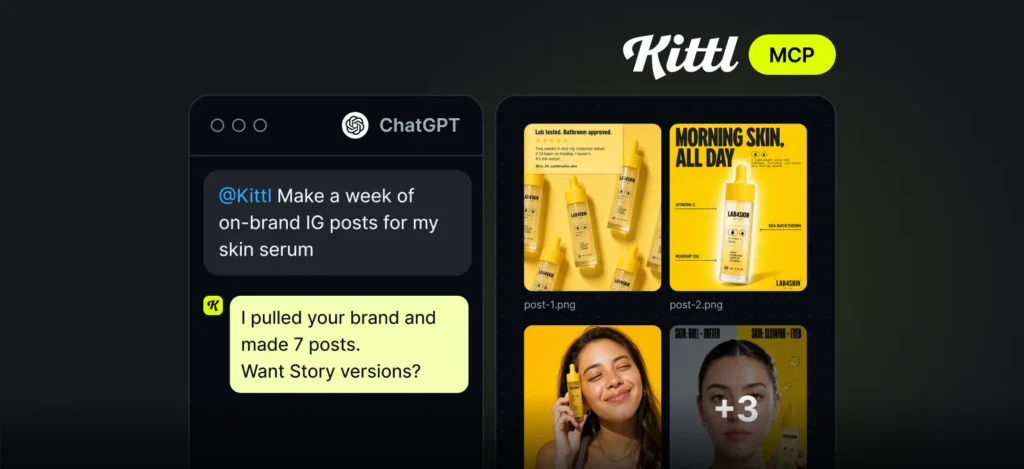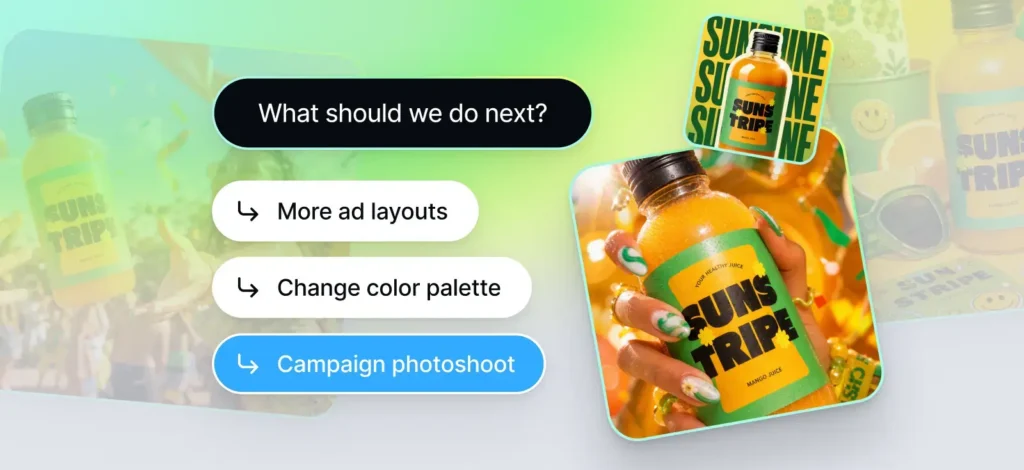
You’re probably already living in Claude, ChatGPT, or Cursor for half your workday. Now that same chat window can also create for you in Kittl.
Right now, if you want to make something in Kittl, like a product photo or a mockup, you open Kittl, find the right tool, and build it yourself. With this update, you can skip all of that. You connect your Kittl account to the AI assistant you already use, once, and from then on you just type what you need, like you’re asking a colleague for a favor.
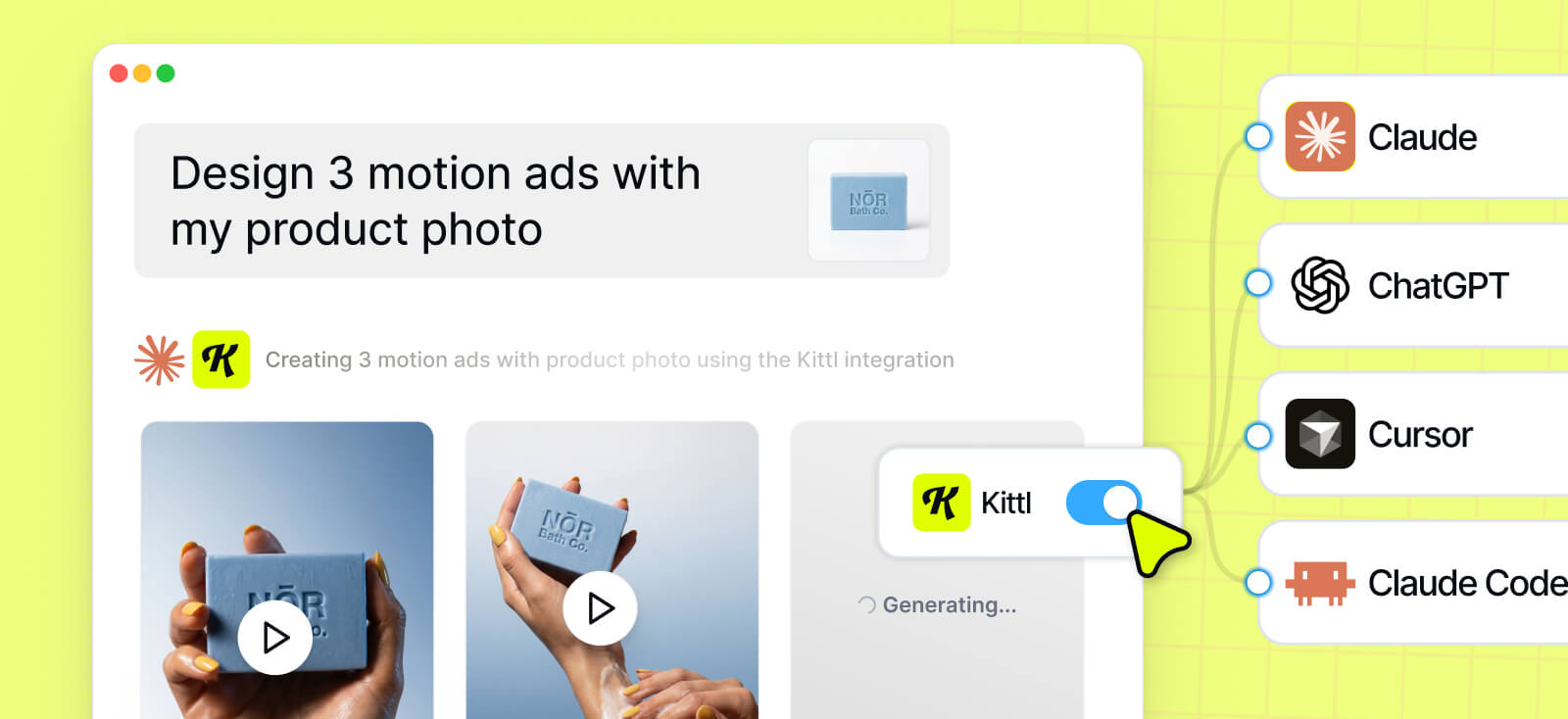
Ask for “3 motion ads with my product photo,” and Kittl reads that request, picks the right tool for the job, and builds it, all without you ever opening a new tab. The result lands straight in your Kittl dashboard, exactly where your other projects live, ready to export or edit further.
You don’t need to know anything about how it works behind the scenes. You just need to know how to ask.
Here’s what you can do, and how to set it up.
How to connect Kittl MCP in 4 simple steps
Signing in connects your account securely. You won’t need to reconnect or manage a key, Kittl keeps you signed in automatically.
Step 1: Copy the Kittl URL below.
https://mcp.kittl.com/mcp
Step 2: In your AI tool, open Settings, then Connectors.
Step 3: Add a custom connector, name it Kittl, and paste the URL.
Step 4: Click Add, then Connect, then sign in with your Kittl account. You’re all set.
What you can do now
Image and video, in one ask
Ask for “a product shot of my ceramic candle on warm wood” or “a 10-second video for my new soap.” Kittl picks the right model for you, from 30+ options, so you don’t have to guess. Add details like lighting, angle, or mood, and it uses those too.

Workflows for your use case
Ask “what workflows do you have for packaging design,” or just say what you’re making. Kittl finds the right one, runs it, and sends back the result, right in the chat.

Tweak your creations
Already have a photo in your projects? Ask Kittl to remove the background, make it bigger, or turn it into a vector. No editor, no download, just ask.

Control your account
Ask “show me my recent projects” or “what’s in my Brand Kit,” and it’s right there. Move files into folders, check your team, or see how many tokens you have left, all in the chat.

Learn how to connect the MCP
Watch this short video and connect Kittl to your AI Assistant in seconds.
This means you can now connect Kittl to your AI assistant, and the next time you need a product shot, a mockup, or a quick background removal, you don’t have to open a new tab or start from scratch. Just ask, right where you’re already working, and Kittl builds it for you.
Whether you’re prepping a launch, refreshing your listings, or just need one more asset before a deadline, it’s ready whenever you are.

Tobias Saul is a co-founder and chief product officer at Kittl, where he leads the vision for making professional design tools simpler, smarter, and more inspiring to use. With a background in typography, lettering, and graphic design, Tobias brings a deep appreciation for craft and detail to Kittl’s product and brand experience.