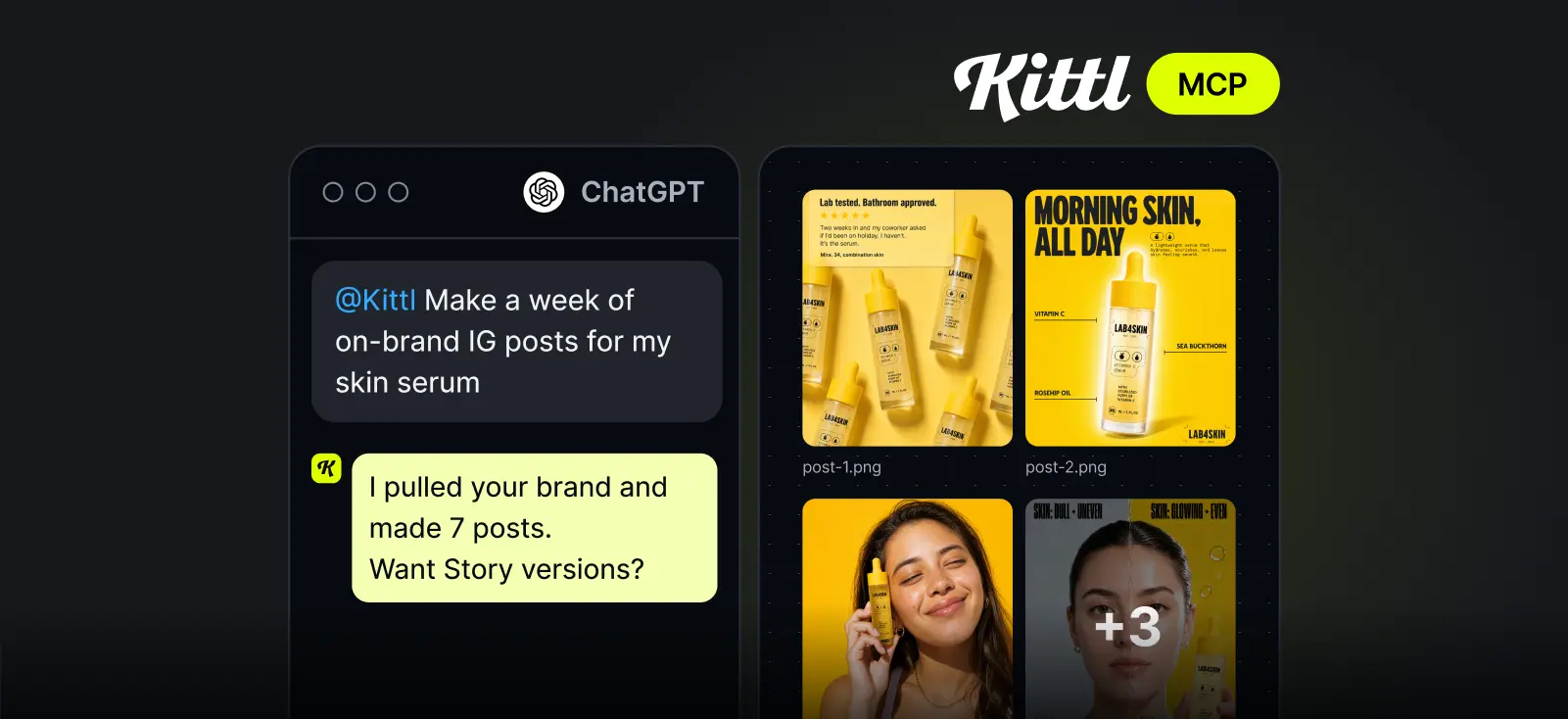
You already plan in ChatGPT or Claude. The launch calendar, the product brief, the captions for next week’s drop. Then it’s time for the visuals, and you’re back to downloading, uploading, and switching between tools.
Not anymore. Kittl now works inside your AI assistant. Connect your account once, then ask for product shots, mockups, social content, and video in the same chat where you plan. Kittl’s AI workflows and your Brand Kit keep every result looking like your brand.
Connect and get 300 free images
Connect Kittl to ChatGPT or Claude and get 300 free images on any paid plan*. Your free images are ready as soon as you connect, and you have 7 days to use them.
Why use Kittl in your assistant
Your assistant is great at planning. But ask it for product visuals and you know the result: it changes your product, drifts off-brand, and the mockups don’t look real. Good enough for a draft. Not good enough to sell with.
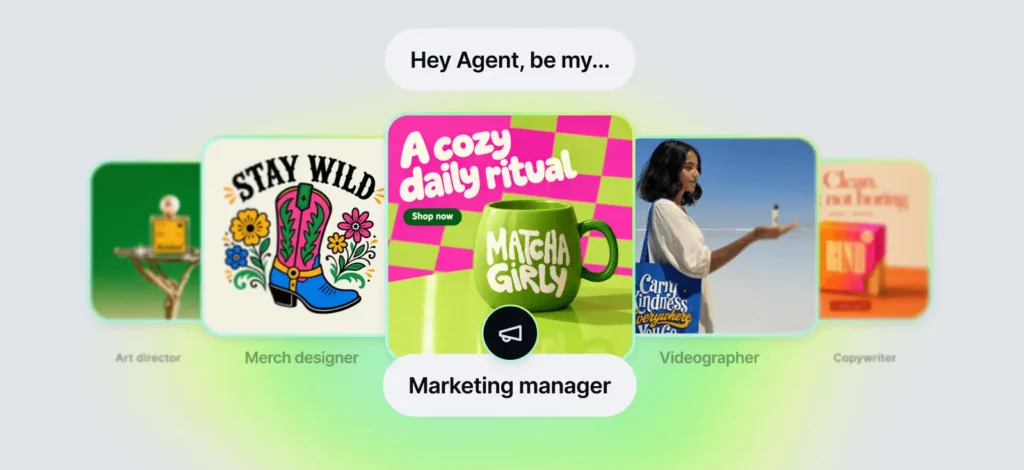
Kittl brings the design skills your assistant is missing:
- AI workflows built by designers, for product shots, packaging, mockups, and more
- Your Brand Kit, so colours, fonts, and logo carry through every image
- Real product mockups, from tees and hoodies to packaging
- Background removal, upscaling, and vectorising, on one file or a whole folder
- Video, right in ChatGPT and Claude
- 20+ of the newest AI models, picked for the job you describe
You plan, create, refine, and organise in one chat. Then open any result in Kittl when you want to fine-tune it.
Join our live demo (November 10)
In this session we’ll show you the Kittl MCP, a one-time connection that puts Kittl’s design tools inside the AI you already use. Ask any questions live.
What you can do now
Four ways to put it to work this week. Copy the prompts, swap in your product, and go.

A campaign from one product photo
Share one product shot and your campaign brief. Get social posts, stories, and ad creatives in your brand colors and fonts, plus a short product video. No Brand Kit yet? Ask Kittl to build one from your website first.
Try it: “Use Kittl to turn this photo into an IG post, story, and ad for our autumn drop, with my Brand Kit.”

Your product launch
Update your product listing directly in one chat. Get the same shots, angles, and style. Just upload your new product image.
Try it: “Use Kittl to create a listing set for this new t-shirt that matches my bestseller’s listing: hero shot, lifestyle scene, and in-hand shot.”

10+ variations from your best seller
Take the design that already sells and spin it into new variants. Pick your favorites and get them mocked up on the products you sell, saved to a new folder.
Try it: “Use Kittl to create 10 variants of this design for a travel drop, then mock them up on t-shirts.”

A whole folder, prepped in one ask
Remove backgrounds, upscale, vectorise, and mock up every design at once. Twenty designs, one request, saved straight to a new folder in Kittl.
Try it: “Use Kittl to remove the background from every design in my serum drop folder and upscale them.”
More you can do with Kittl MCP
Listings and launches are just the start. With Kittl connected, you can also:
- Drop your URL and have your assistant create your brand from scratch in Kittl
- Turn a design into a clean vector logo
- Run Kittl’s AI workflows for product shots, ads, and listings
- Design posters, stickers, and YouTube thumbnails
- Remove backgrounds and upscale for print
- Animate a product shot into a short video
- Find your projects and resize them for any format
- Save results into folders in your Kittl workspace
- Put your logo on hoodies, totes, mugs, and packaging
Describe what you need, and your assistant picks the right Kittl tools and chains them together in one request.
How to connect Kittl
Connecting takes under a minute. You’ll need a Kittl account, then pick your assistant on the Kittl MCP page (kittl.com/mcp).
Claude
- Click “Add to Claude”. Claude opens with Kittl already filled in.
- Confirm, then sign in with your Kittl account.
ChatGPT
- Click “Add to ChatGPT”. The Kittl app opens in ChatGPT.
- Connect, then sign in with your Kittl account.
Kittl also works with Claude Code, Codex, and any app that supports remote MCP servers. You’ll find the setup for each on the Kittl MCP page.
You stay in control. You approve the connection, your assistant acts as you, and you can disconnect any time from its settings. Everything you create comes back into the chat and is saved to your Kittl workspace too.
Tips for better results
It only takes one chat.

Start with “Use Kittl to…” Your assistant has its own image tools. Naming Kittl tells it which ones to use.
Give it references. Point to images already in your Kittl projects, upload your artwork, or mention your Brand Kit. The more it knows about your brand, the closer the first result.
Refine in the chat. Ask for variations, a new format, or a different background until it’s right.
Finish in Kittl. Every result comes with a link back to Kittl. Open it there to fine-tune the details, export at full resolution, and save your mockups to your library so they’re always there when you need them.
Start in your next chat
Your next launch is already taking shape in ChatGPT or Claude. Now the visuals can come together in the same place.
*Based on 1,500 tokens with ChatGPT 2.5 Flare. Other models use more tokens per image. Bonus tokens expire 7 days after you connect. Terms & Conditions apply.

Tobias Saul is a co-founder and chief product officer at Kittl, where he leads the vision for making professional design tools simpler, smarter, and more inspiring to use. With a background in typography, lettering, and graphic design, Tobias brings a deep appreciation for craft and detail to Kittl’s product and brand experience.