
Exactly what is a vector file? In this article, we’ll explore the basics of vector files and their benefits, along with when and how to use them.
Vector files are essential for any designer or artist looking to create high-quality, scalable graphics. Whether designing a logo, creating illustrations, or working on a print project, having access to vector files is crucial. So read on to learn all about it!
What is a vector file?
Step 1: Understanding the Basics
A vector file or vector image is a type of digital image that uses math to create shapes — like lines, curves, circles, and polygons. Each shape is defined by coordinates and formulas, not colored squares (pixels). This means the image can be resized as much as you want, and it always stays sharp and clear.
Step 2: Vector vs. Raster Images
- Vector files (SVG, EPS, AI, PDF) are scalable.
- Raster files (JPEG, PNG, GIF) are made of pixels and get blurry if enlarged.
Example:
If you design a logo in vector format, you can print it on a business card or a billboard and it always looks perfect.
If you use a raster logo, it may look pixelated or blurry if you make it bigger.
Step 3: Where Are Vector Files Used?
- Logos and branding (to keep quality at any size)
- Icons and buttons for web/app design
- Print materials: t-shirts, posters, packaging
- Detailed illustrations and infographics
Step 4: Editing Vector Files
You can open and edit vector files with design software like Kittl, Adobe Illustrator, CorelDRAW, or Inkscape.
- Change colors, move shapes, resize, or add text—all without losing quality.
- Layers and transparency are supported, so you can build complex designs easily.
Step 5: File Formats to Know
- SVG (Scalable Vector Graphics): Great for web and apps.
- AI (Adobe Illustrator): Native format for Adobe software.
- EPS (Encapsulated PostScript): Widely used for print and professional workflows.
- PDF (Portable Document Format): Can contain both vector and raster graphics.
Step 6: Why Designers Love Vector Files
- Perfect for both digital screens and print products.
- Infinite scalability — no loss of detail.
- Usually smaller file sizes than complex raster images.
- Easy to edit, recolor, or customize for any project.
Benefits of vector graphics
Now that we’ve answered “what is a vector file,” let’s jump into the benefits of using them. Vector graphics offer numerous advantages that make them ideal for various graphic design applications. Below are some of the key benefits:
- Scalability: Unlike raster images, vector graphics can be scaled up or down infinitely without losing quality. This is essential for designs that must be used across different platforms, such as the web, print, or billboards.
- Smaller file size: Generally, vector files are smaller than raster images, which makes them easier and faster to upload, download, and share. This is particularly useful for digital marketing assets, including graphics used in email newsletter software, where optimized images improve loading speeds and engagement.
- Editability: Vectors consist of objects and shapes, allowing for easy edits. You can change colour, shape, and size while maintaining quality.
- Resolution independence: Vector graphics don’t rely on resolution, which enables them to maintain crisp, clean edges at any size, from a tiny icon to a huge banner.
- Professional output: Vector files are often the standard in professional graphic design and commercial printing because they ensure consistent and high image quality.
Differences between vectors and rasters
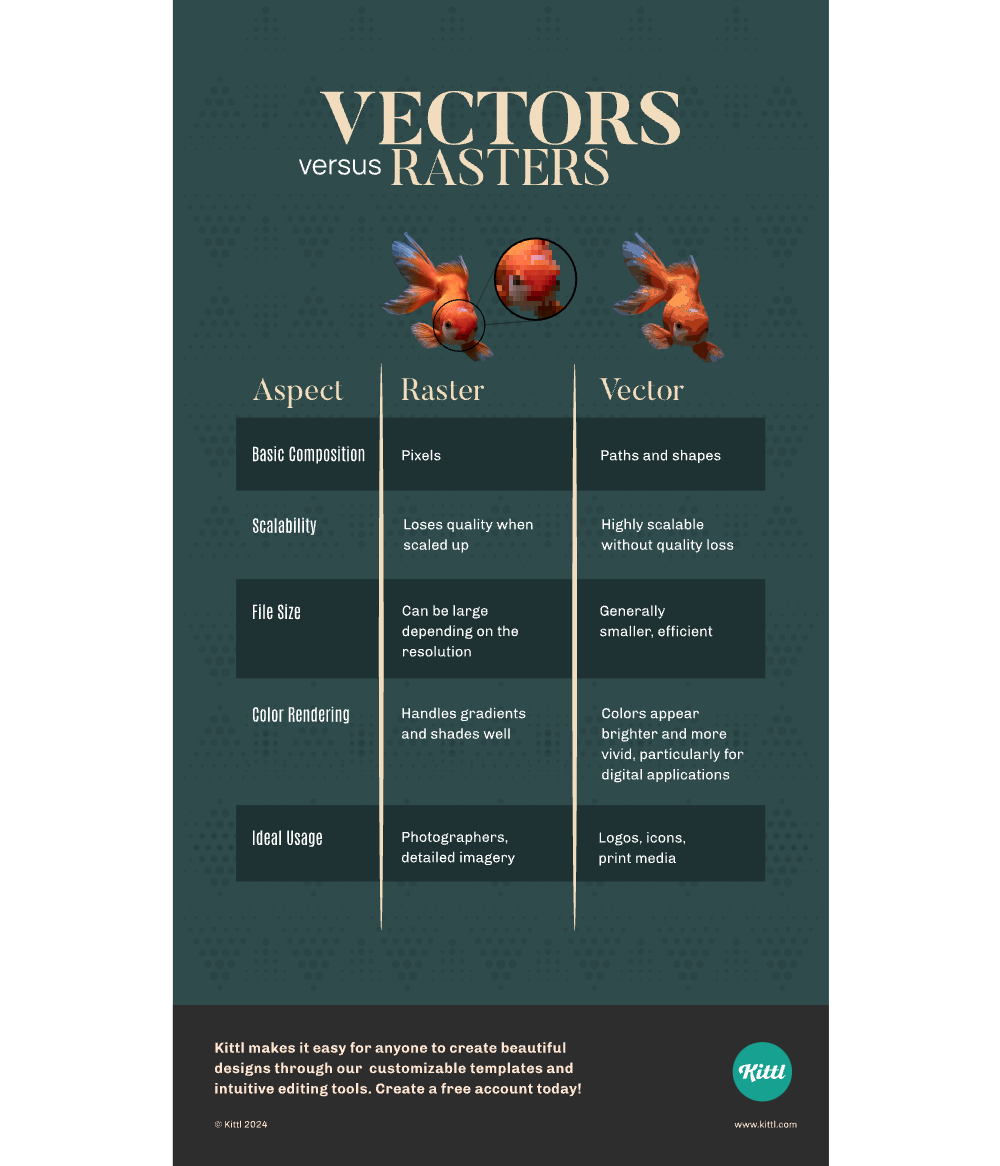
Understanding the differences between vector and raster images is crucial for graphic designers, photographers, and anyone working with digital images.
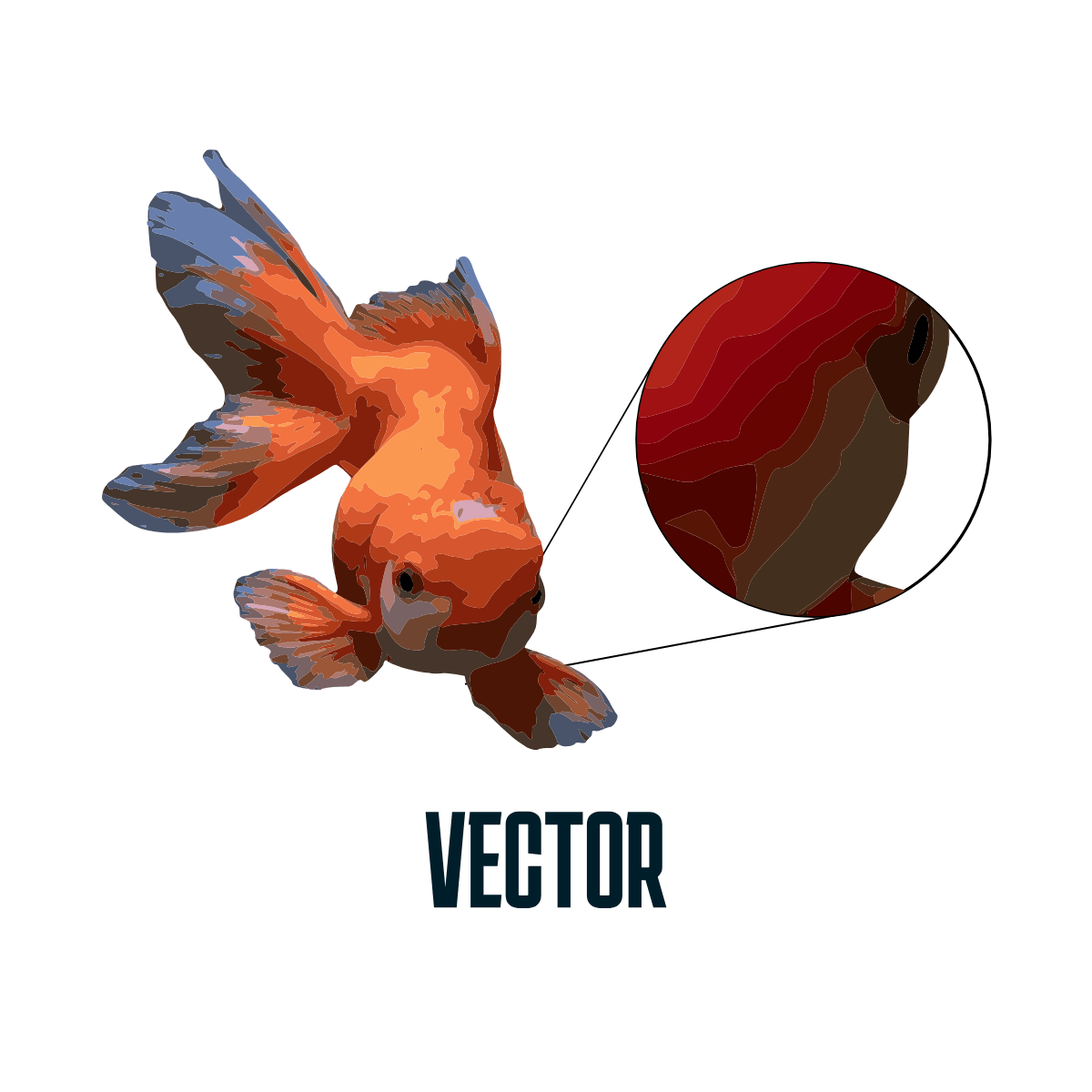
Vector images have “vector paths” defined by a start and end point, along with other points, curves, and angles.
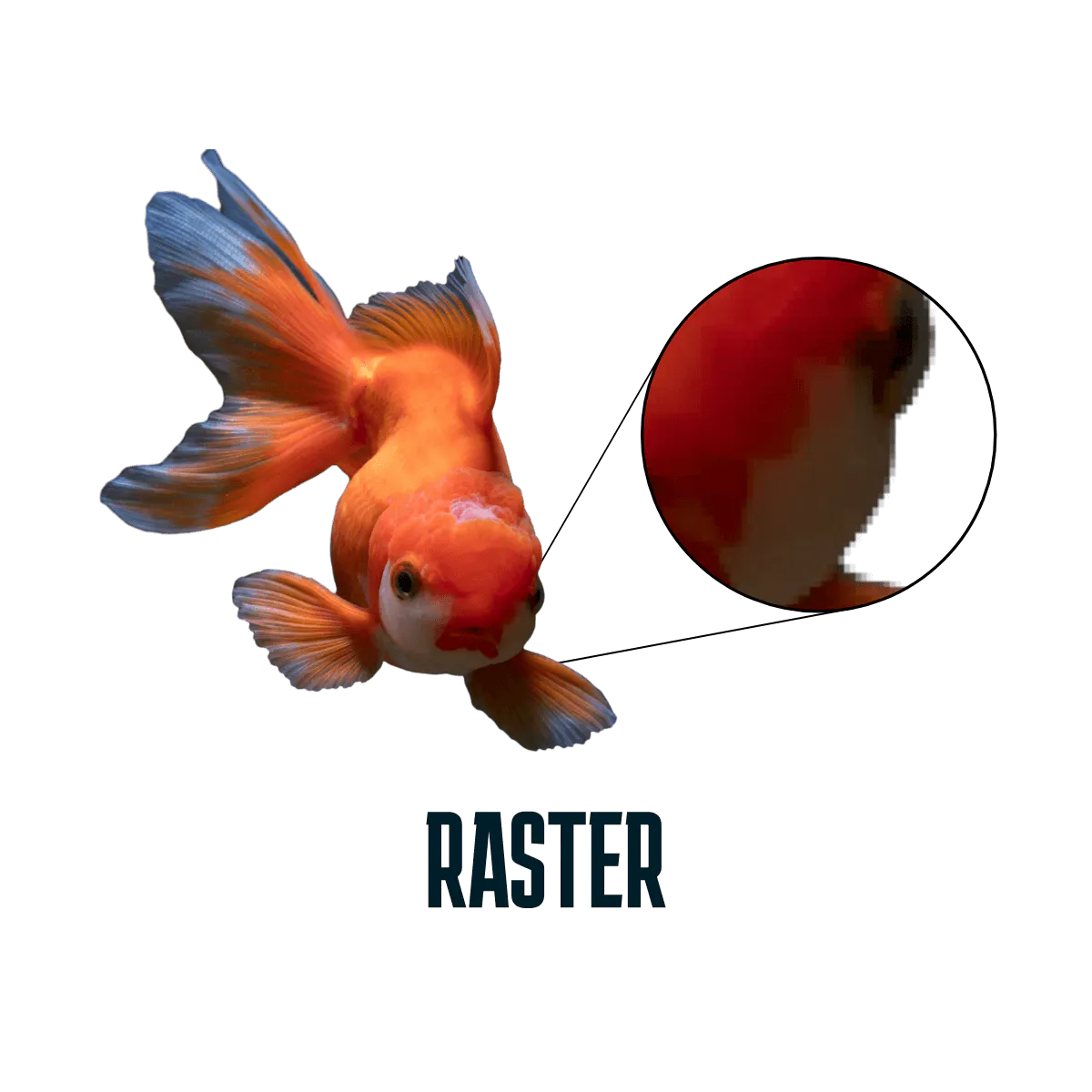
Raster images, also known as bitmap graphics, are composed of pixels and small squares that make up the image on the screen.
See a side by side comparison of raster and vector images in the chart below:
When to use vector files?
- Creating logos and branding: Logos must be scalable and look good in various sizes while maintaining quality. Kittl’s AI logo generator can create vector logos that are perfect for this purpose.
- Designing business cards: Vector files are preferred for sharp and precise printing of business cards to maintain the clarity of text and graphics at any size. Especially if you are not sure whether to print or not, using vector graphics is the way to go when you want to create a digital business card, because if you decide to print them, the quality will not worsen.
- Typeface design: Vector types are ideal for type design as they allow for smooth lines and curves crucial for legibility at various dimensions.
- Illustrations and digital art: Many graphic designers use vector files when creating illustrations or digital art due to their scalability and ease of editing.
- Technical drawings and schematics: Engineering and architectural schematics often use vector graphics due to their precision and scalability.
- Animations and web graphics: Vector graphics are frequently used by 2D animation studios and web designers because they can maintain high-quality resolution as they scale on different screen sizes.
- Plotter-cut vinyl and large-format printing: Vector files are used to create designs that need to be cut out of vinyl or printed in large formats, such as banners and billboards.
How can you tell if an art is vectorised or not?
One quick way to determine whether you have vector art is by checking the file extension. Vector files often end in .ai, .svg, .eps, or .cdr, while raster files typically end in .jpg, .png, or .bmp.
Another way is to open your graphic file with graphic design software. If certain tools or platforms are not accessible in your region, you can change VPN location to securely access them and ensure you can properly inspect and edit your files.
Then, zoom in closely on the edges of the images and check for sharpness and precision. If the art remains smooth and the lines crisp, you deal with a vector without pixelation. Also, clicking on parts of a vector image allows you to change its colour.
In contrast, raster images will show a grid of individual pixels that become more apparent as you zoom in, leading to a loss of quality.
It’s important to note that just because a file has a vector file extension doesn’t automatically mean it’s a vector artwork. These file formats can also contain raster images.
The only sure way to tell is by visually inspecting the image quality described above, looking for that defining characteristic of scalability without degradation.
Common vector file format
Different types of vector file formats exist, each with unique features and compatibility with specific graphic software. Let’s explore the common vector file types:
Scalable Vector Graphics (.svg)
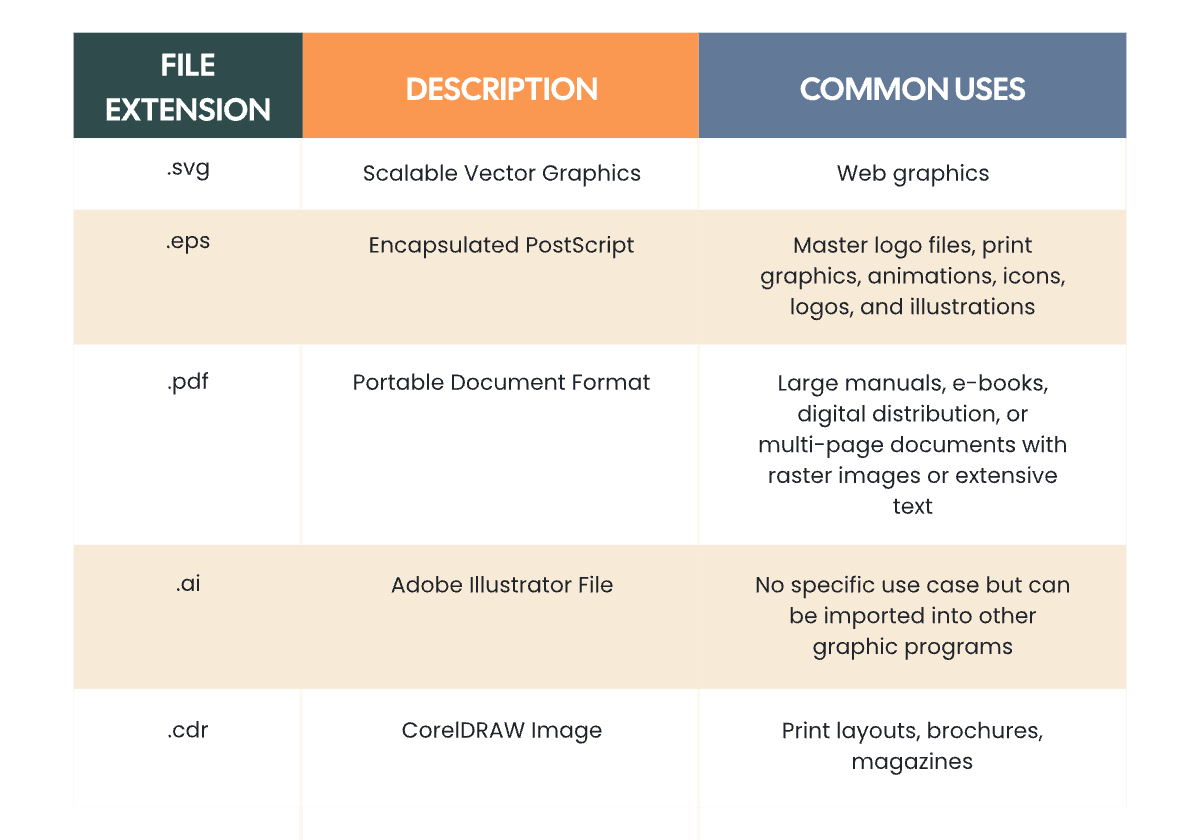
SVG is a XML code-based vector file format ideally used for web graphics. They boast minimal file sizes and the scalability and clarity expected of vector images.
SVG images are best viewed on computer screens, making them an excellent option for detailed charts, tables, or infographics, such as those used in Gantt chart software, especially when zooming in to see more detail.
Since SVGs are XML-based, you can edit them directly in Notepad. Plus, they’re web-friendly, which means they’re searchable and indexable by web engines.
Encapsulated PostScript (.eps)
The .eps file format is an older vector file type that remains in use mainly due to its backward compatibility with some legacy software and devices.
However, its capabilities are less flexible than newer formats, offering limited transparency support and reduced editability afterward. Notwithstanding, EPS files are still a common vector file format choice for master files of logos and printed collateral.
Portable Document Format (.pdf)
As one of the most versatile vector file types available, PDF files are adept at handling both vector and raster graphics. Their portability is unparalleled – PDFs are viewable on nearly any device and maintain consistency across platforms.
PDFs are often used in professional printing and digital distribution. However, they can become significantly large in file size, a critical factor when sharing intricate designs. Equally important is understanding how a VPN app can protect your work while sharing files online, like a VPN for Chrome.
Adobe Illustrator files (.ai)
Created and primarily edited within the Adobe Illustrator environment, AI files maintain high-quality, scalable graphics for multiple design applications.
As Adobe’s proprietary format, AI files offer a wide range of capabilities for print layouts, logos, illustrations, and complex designs.
While native to Illustrator, AI files are flexible and can be imported into various design apps, such as Amadine, especially for designers working on a Mac.
Also, for Mac users, it is best to make sure that the device has no technical problems (e.g., the charger not working or the screen being damaged) so that nothing interferes with work.
CorelDRAW files (.cdr)
The CorelDRAW Image (.cdr) files are native to the CorelDRAW Graphics Suite. These files provide all the expected features of vector files and are designed for a seamless experience within the Corel ecosystem.
Although they originate from proprietary software, CDR files have broad support in the industry and offer various options for digital illustration including compatibility with other design programs like Inkscape for Mac users.
See a comparison of the different file extensions in the chart below:
How to create a vector file from an image?
For those wondering how to create a vector file from an image you already have, you’ll find the answer here: A raster image can be converted into a vector format through “vectorisation” or “image tracing.” It involves using specialised tools or software to analyse the pixels of the image and convert them into vector paths. Although, the image shouldn’t be overly complex, as this will result in a loss of detail.
Here are a few tips to help you achieve this without losing quality:
- Use high-resolution images: Begin with a high-resolution raster image to ensure that the vectorized version is high quality.
- Online conversion tools: Free online converters allow you to upload your raster files and turn them into vector files. Kittl offers a free SVG converter that allows you to upload your JPG or PNG images and convert them into an SVG vector file using AI. You can even convert your sketches and drawings into scalable vector graphics and directly edit them on Kittl.
- Graphic software: Programs like Adobe Illustrator and CorelDRAW have built-in tools for converting raster images to vector files. Open-source programs like Inkscape are also available.
- Hire a professional: If you’re not confident in your skills or want the best quality conversion, consider hiring a graphic designer through recruitment outsourcing services to convert your image. This option may come at a cost, so it’s important to keep your hiring efficiency high, but it can ensure the most precise and high-quality vector conversion.
When vectorising images with a lot of dark colours, it’s best to use two layers: a top layer for working on the image’s details and a bottom layer to act as the vector image’s background colour. This technique helps keep more details intact. Watch a tutorial on how to do it here.
Now that we’ve answered “what is a vector file,” showcase your creative ideas with Kittl! Whether you’re a seasoned designer or just starting Kittl’s user-friendly platform, intuitive tools, and vast resource library make it simple to create stunning vector images that stand out.
If you enjoyed this article “What is a Vector File,” you might enjoy the related articles listed below and more within our Kittl learning resources.
These resources will help you on your way to learning graphic design tips, tricks, and trends. Whether you’re a beginner, learning design principles 101 or a seasoned pro, Kittl is here to help you grow as a creator and designer.