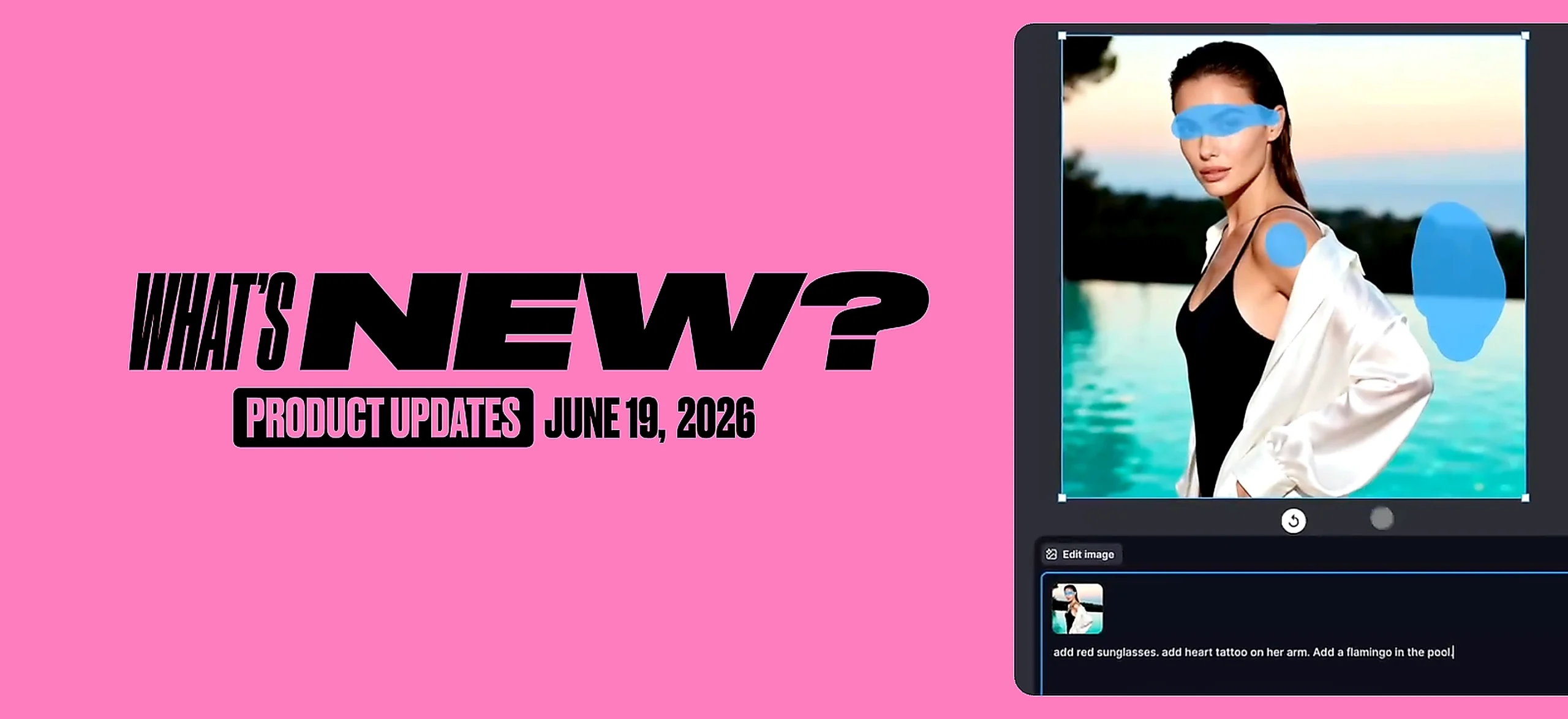
This week’s updates are about giving you more control over the images you’re already working with. Whether the background remover took out too much, or you need to change something specific mid-design, you now have the tools to fix it, right where you’re working.
Here’s what’s new in Kittl this week:
1. Edit Area
Edit Area is a brush-based editing tool that lets you make specific changes to any part of an image using AI.
Select an image, paint over the area you want to change, describe what you want there, and Kittl generates the result in place. So you can fix what’s not working without regenerating the whole image or losing the parts you already love.
You can use it to change a background behind a product, add or remove an object, adjust colours in a specific area, or replace a detail that isn’t working. The rest of the image stays untouched.
This works with every image in Kittl, AI-generated or imported. Each generation uses 24 tokens.
This makes it particularly useful for product-based sellers who need to adapt an image for a new season or context without a full reshoot, and for POD designers who want to iterate with precision on a design that’s almost there.
Here’s how it works:
- Select your image in the editor.
- Click Edit Area in the Tools panel on the right.
- Use the brush to paint over the area you want to change.
- In the Edit image panel at the bottom, describe what you want in that area.
- Click Edit Image to generate.
Adjust the brush size for more control. Use Add to select more of the area you want to edit, or Subtract to erase parts of your selection.
Now you can just select what you want to remove and prompt “Remove it” and it’ll work exactly the same way.
Here’s what you can do:
Add anything

Erase anything

Replace anything

Update anything

2. Edit Cutout
The Background Remover is fast. But sometimes it removes more than you wanted, or you erase something manually and need it back.
Edit Cutout lets you restore any erased part of an image. Paint over what you want to recover, and it comes back. It works whether the removal happened through the Background Remover or manually.
This is especially useful when a cutout gets most of the way there but removes a little more than you wanted. Instead of starting over, you can bring back exactly what’s missing in a few strokes.
Here’s how it works:
- Select your image in the Kittl editor.
- In the Tools panel on the right, click Edit Cutout.
- Adjust the brush size to match the area you want to work on.
- Paint over the parts you want to bring back. They’ll reappear as you brush over them.
- Click Exit Edit Mode and continue designing.

More control over what you already have
Together, Edit Cutout and AI Inpainting mean fewer full restarts. You can fix what the background remover missed, adjust a specific area without touching the rest, and keep moving without losing the work you’ve already done. All in one tool.

Tobias Saul is a co-founder and chief product officer at Kittl, where he leads the vision for making professional design tools simpler, smarter, and more inspiring to use. With a background in typography, lettering, and graphic design, Tobias brings a deep appreciation for craft and detail to Kittl’s product and brand experience.