One common problem shows up when people try to get a professional LinkedIn photo: it looks amazing on their phone, then they upload it, and suddenly it looks washed out, blurry, or weirdly cropped.
So they try again. And again. After a few rounds, most people give up and stick with the old one. We saw this so often that we tested a new approach internally at Kittl.
It worked so well that people started asking where we got our LinkedIn photos. That’s why we built a shortcut.
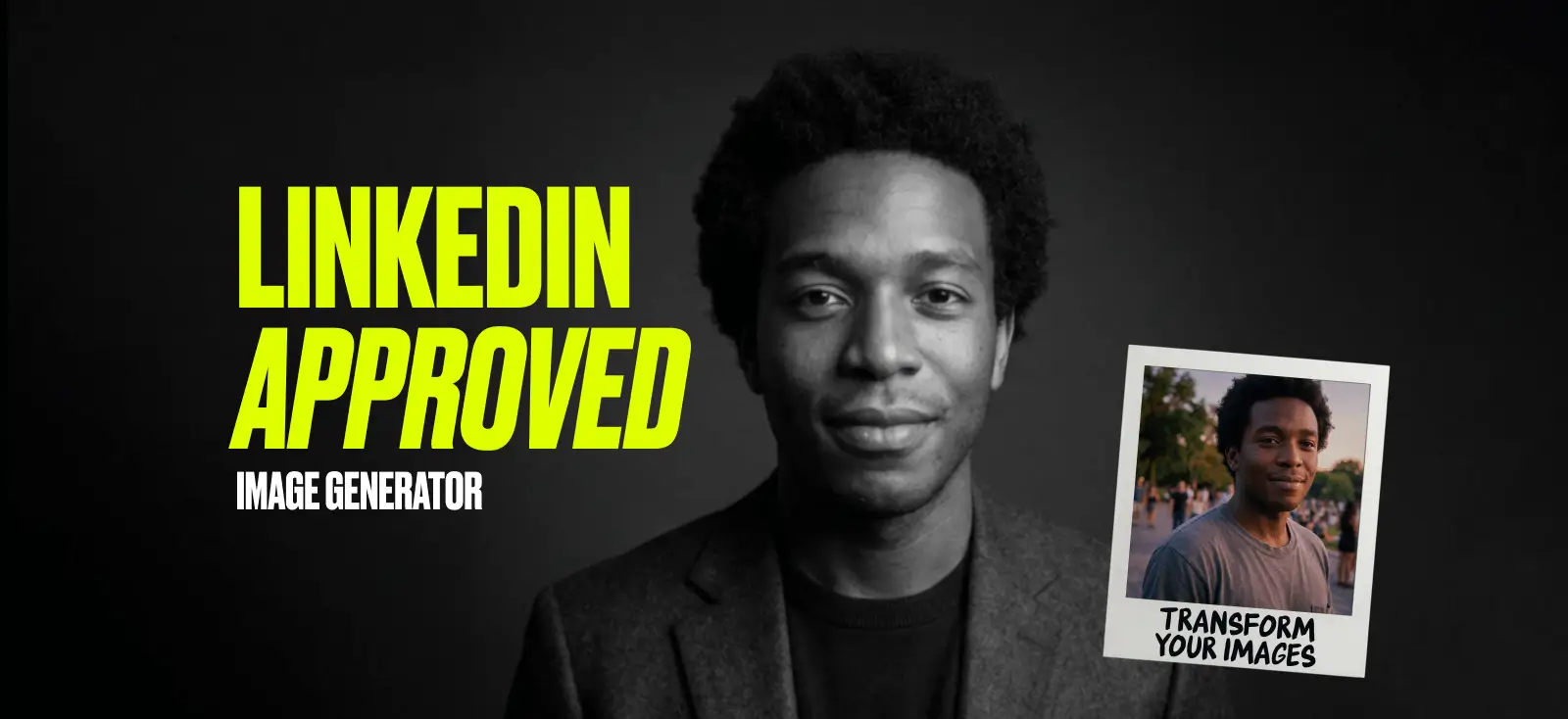
With Kittl’s AI professional photo template, you can turn a normal photo into a studio-style headshot in minutes. No photoshoot needed. And it’s designed to stay clean inside LinkedIn’s small, circular profile frame.
- Save time: No planning, no lighting setup, no retakes
- Save money: Skip the expensive headshot session
- No photoshoot: Use a photo you already have


What “professional photo for LinkedIn” actually means
A lot of people think a professional photo for LinkedIn means a suit, a studio, and perfect lighting. It does not.
It just needs to look like you showed up for work.
We like the way Coursera breaks down a good LinkedIn profile picture. It comes down to simple stuff that anyone can do, even if you are not a design person.
- Face first: Head-and-shoulders only. No full-body shots. No group photos.
- Clean background: A plain wall works. A messy room does not.
- Good light: Stand near a window. If your face is in shadow, it will look dull on LinkedIn.
- Natural expression: A small smile is enough. Skip the big grin or the intense stare.
- Work-appropriate clothes: Wear what you would wear for a client meeting or a video call.
- Hold still, look at the camera: Blur happens fast. Keep the camera steady, and look straight into the lens.
- Extra checks: No sunglasses, no heavy cropping from a group photo, and no distracting filters.
If you can tick these off, your photo will read as professional. Even with a phone. Even without fancy gear.
LinkedIn professional photo requirements and how to take a professional LinkedIn photo at home
If your photo looks sharp on your phone but turns blurry on LinkedIn, it is usually not your camera. It is the upload size and the crop.
LinkedIn shows your profile photo as a small circle in a lot of places. That means the corners get cut off. So if your face is too close to the edge, LinkedIn will chop it.
Here are the specs that keep your photo looking clean.
- Use a square photo for your profile: According to Social Media Dashboard, LinkedIn profile photos work best at 400 x 400 or larger, and can be up to 8 MB.
- Leave some space around your head: Aim for head and shoulders, with a little “air” above your hair. This helps the circle crop.
- Stick to common file type: On its help page, LinkedIn also lists PNG or JPEG as accepted formats for image uploads in its Page specs, plus a max size limit for those uploads.
Usually, getting a LinkedIn photo “right” turns into a whole thing, right?
You stand by a window, find a blank wall, hold your phone at eye level so it does not look like a selfie, crop it to head and shoulders with a bit of space for the circle, then do a quick brightness tweak and try not to use filters or group shots.
But this is 2026. You do not need all that anymore.
“Take” a professional LinkedIn photo at home
If you can upload a photo to WhatsApp, you can do this. Seriously. We built it for busy people who do not want to learn design, open five tabs, or mess with settings.
Step 1: Open the LinkedIn photo upgrade template

Go to the LinkedIn Photo Upgrade template on Kittl and open it. Then choose your style. There are 6 options, from dark grey editorial portrait all the way to natural light editorial portrait, soft light, and real shadows.
Want to look like you work in Kittl? Pick the Bold Color Editorial Portrait — Close Framing. We already set the background to #DFFF00 (lime), so you won’t have to.
We won’t tell if you borrow the look for your own profile.
Step 2: Drop in your photo

Click the “Your image” artboard and replace it with your photo.
Got a recent selfie that catches your good side? Use that. A simple photo from your camera roll works as long as your face is clear and well-lit.
Step 3: Hit generate

Click the Smartboard. The prompt is already filled in. You do not need to write anything. Just click Generate again and let it do the work.
Step 4: Download and upload to LinkedIn

Download your new headshot, upload it to LinkedIn, and check the crop. Make sure your face stays centered, and nothing gets chopped by the circle.
Kittl lets you generate up to 4 options at a time, so use all of them to save time. Pick the one that looks most like you on a really good day. It takes about as long as making coffee, and you get real choices.
Professional LinkedIn cover photo
You know what makes a great headshot look even better? A banner that complements it.
First, get the size right. Social Media Dashboard LinkedIn image size guide recommends 1584 x 396 for a personal LinkedIn cover photo, and it also warns that the banner can crop differently on desktop and mobile. So keep your text and logo away from the edges.
Now pick a simple banner formula that matches your work.
- Solo brand builder: One line tagline plus one clear offer
Example: Brand design for small shops, logos in 48 hours - Creative entrepreneur: Your niche plus your best seller category
Example: Cute cat stickers, best-selling vinyl packs - Agency lead: Your positioning plus proof
Example: Landing pages for SaaS, trusted by 40+ teams
If you want more quick wins like this, steal a full checklist and templates from this Kittl guide on boosting your LinkedIn profile banner.
FAQ about professional LinkedIn photos
1. Can I use an AI headshot on LinkedIn?
Yes, if it still looks like you. LinkedIn’s own Professional Community Policies say you should use your true identity and not use an image that is not your likeness for your profile photo.
So an AI upgrade is fine when it keeps your real face, not a “new person” version of you. If you want the fast route, you can use Kittl’s LinkedIn photo upgrade template to get a clean studio-style look in minutes.
2. Should I smile?
Most of the time, yes. A small, natural smile reads friendly and confident, which matters when someone is deciding if they trust you enough to reply. Jobscan also calls out smiling as an easy way to level up a LinkedIn photo.
If your industry is super formal, go for “warm neutral” instead of a big grin.
3. What background is best?
Plain wins. A simple wall, a soft blur, or anything calm makes your face the focus. Jobscan even lists clean backgrounds like white or gray as safe choices, and warns against anything distracting.
4. How often should I update my photo?
Update it when you look different now than you did in the photo. New glasses, new hair, big style change, or your current photo is clearly old. Jobscan’s rule is simple: your photo should look like the current you, so people recognize you right away. If nothing changed, a refresh every couple of years is a good habit.
5. What file type should I upload?
Use JPG or PNG. For LinkedIn Pages, LinkedIn Help says images must be PNG or JPEG and lists a max size limit for those uploads.
For personal profiles, Hootsuite’s 2026 size guide is a good reference point for staying inside LinkedIn’s usual image limits.
6. Does my LinkedIn photo have to be professional?
If you want jobs or clients, yes. Forbes puts it bluntly: Your headshot is prime real estate and it’s often the first thing people notice on your profile.
Here’s the quick decision tree:
– Job search or client work: yes, go professional
– Community networking: still yes, but “professional” can just mean clear, current, and easy to recognize
7. Is a LinkedIn cover photo important?
Your profile looks unfinished when the banner is blank. If you want your profile to look complete, the Hootsuite image size guide lists a personal LinkedIn cover photo size of 1584 x 396, and notes that cropping can look different on mobile vs desktop.