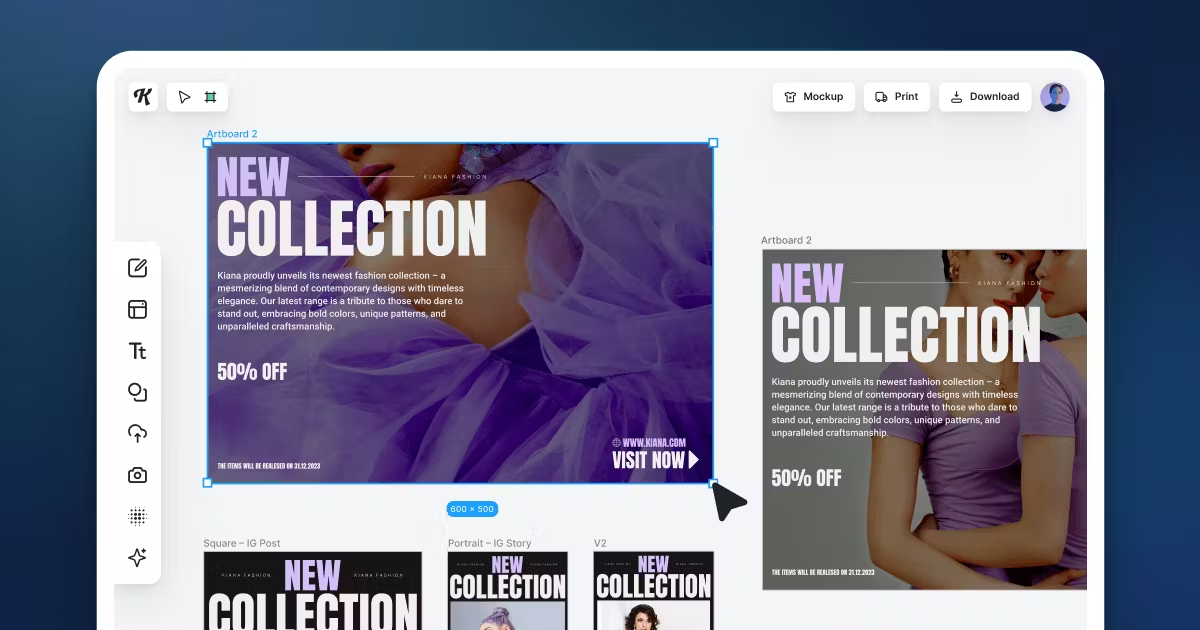
Infinite Canvas is a major enhancement to our graphic design tools, offering a more streamlined way to manage multiple artboards in a single project file. With this innovative tool, you gain the ability to handle multiple artboards within a single project file. This marks a significant leap forward in expanding creative potential and making the design process faster and more efficient than every before.
Why Infinite Canvas is a big deal
Traditionally, each page of a design project required a separate file. This was not just time-consuming but also a hassle, especially when working on complex projects involving brand guidelines, multichannel campaigns, brochures, and more. Infinite Canvas addresses this issue head-on by enabling the simultaneous management of all pages within a single file, significantly boosting workflow efficiency and reducing complexity.
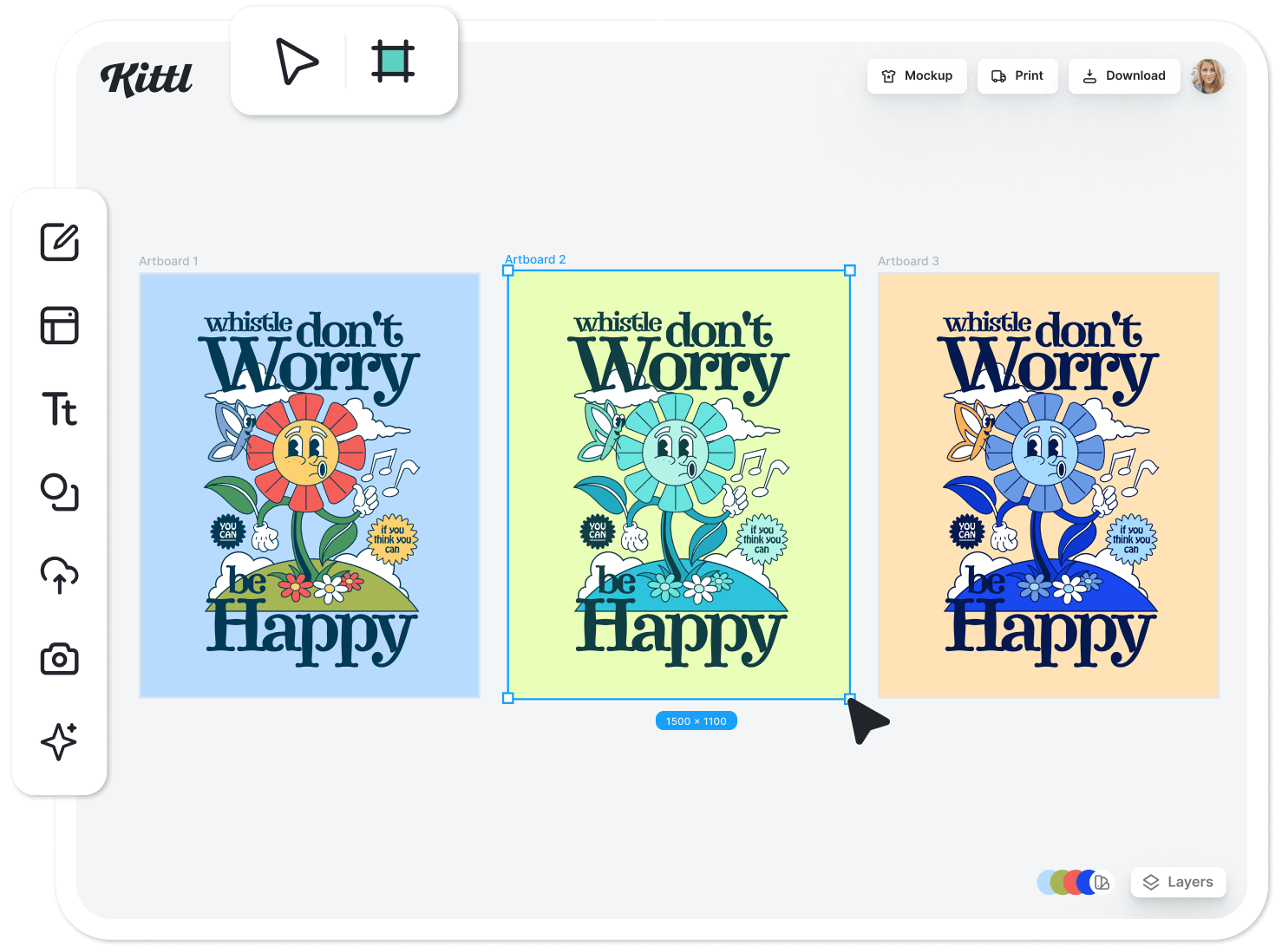
Key features of Infinite Canvas
- Multiple artboards: Work with numerous artboards in one project file.
- Infinite workspace: Enjoy an unrestricted space for your designs.
- Flexible artboard management: Easily move, duplicate, or delete artboards.
- Customizable sizes and formats: Tailor your artboards to your project needs.
- Simultaneous export: Export multiple artboards in one go.
- Template integration: Incorporate templates as new artboards.
- Individual content clipping: Easily clip content to artboards.
- Layered organization: Keep your artboards organized in the layers menu.
Practical use cases
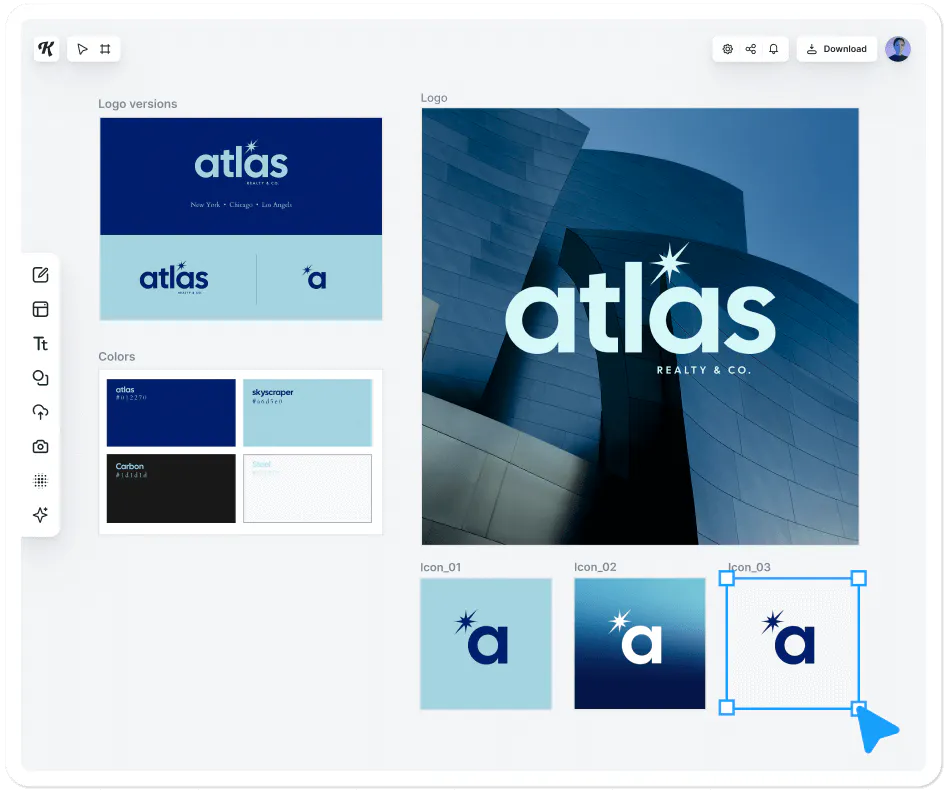
Infinite Canvas is not just versatile but also practical. Working on brand boards, style guides, marketing campaigns, or packaging becomes extremely handy. It’s a one-stop solution for various design needs.
Getting started with Infinite Canvas
- Creating artboards
Simply open a project, select the Artboard tool from the top left of your screen, and drag on the canvas to create a new artboard. - Adding elements
Add elements, photos, or templates by dragging them onto the artboard, where they automatically clip. - Exporting your work
Download individual or multiple artboards easily
Other tips
- Moving artboards
To reposition an artboard within your project, simply click on the artboard’s title and drag it to your desired location. - Changing artboard titles
Renaming an artboard is straightforward: double-click on the artboard’s title. - Deleting artboards
To remove an artboard from your project, click to select its title and then press the backspace key. - Copy or duplicate artboards
To copy an artboard, right-click the artboard title and use copy [cmd+c] and paste [cmd+v] or select an artboard and use drag+alt key to duplicate. - Copy artboard between projects
To copy an artboard between project files, open both projects as individual browser tabs. Copy the artboard, open the other project tab, and place it.
The bottom line
Infinite Canvas is more than just a feature; it’s a significant step forward in the realm of graphic design. By reducing the time spent on organizational tasks and offering a platform for creative experimentation, it not only enhances productivity but also opens up new avenues for creative expression. Whether you are a seasoned designer or a beginner, Infinite Canvas is a tool that promises to transform the way you approach design projects.

Kittl brings pro-quality templates, premium fonts, and AI-powered tools right to your browser. Drag, drop, customize, and share. Perfect for brands, creators, and anyone who loves great design. Kittl was made to give you seamless and fast design process.