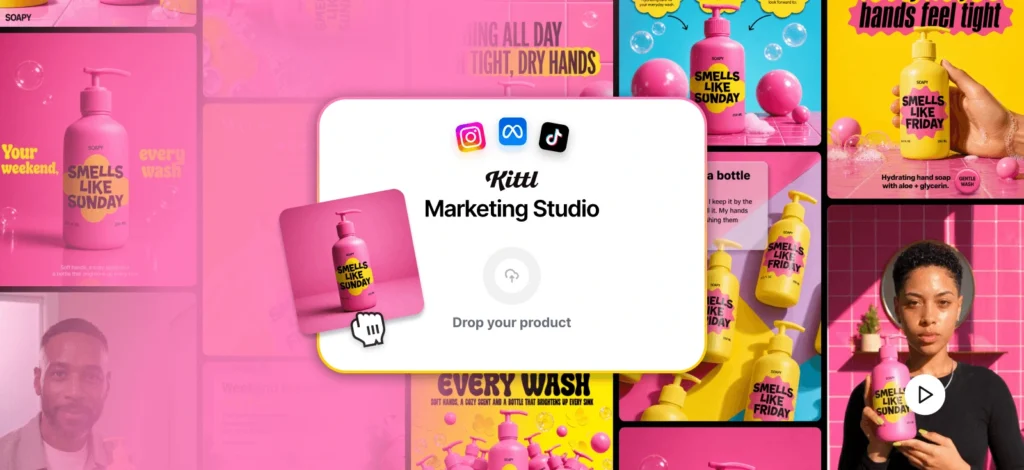
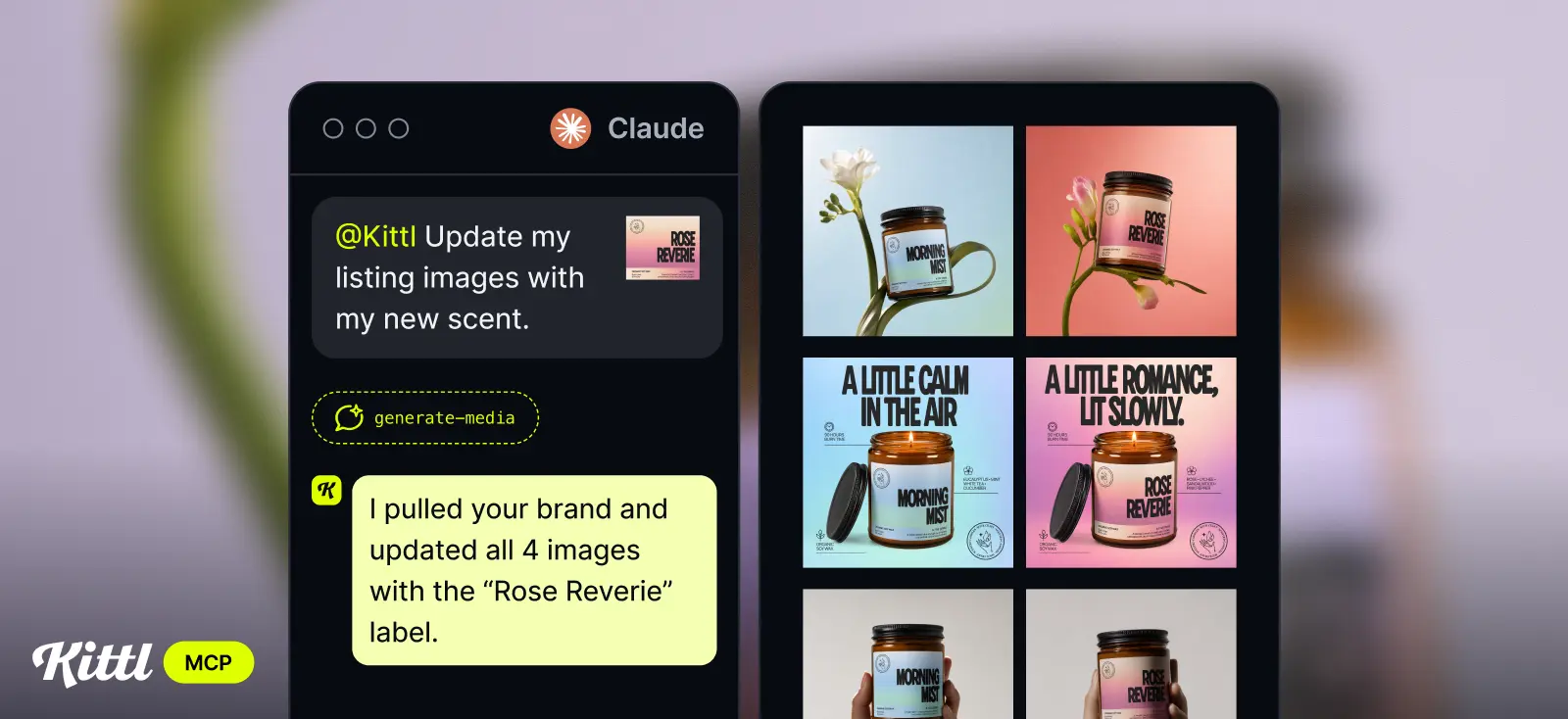
The product is ready. The photos aren’t. Before a new product can go live, it needs listing images that match the rest of your shop, posts to announce it, and ads to get it in front of new customers. That’s usually a week of briefing, editing, resizing, and exporting across different tools.
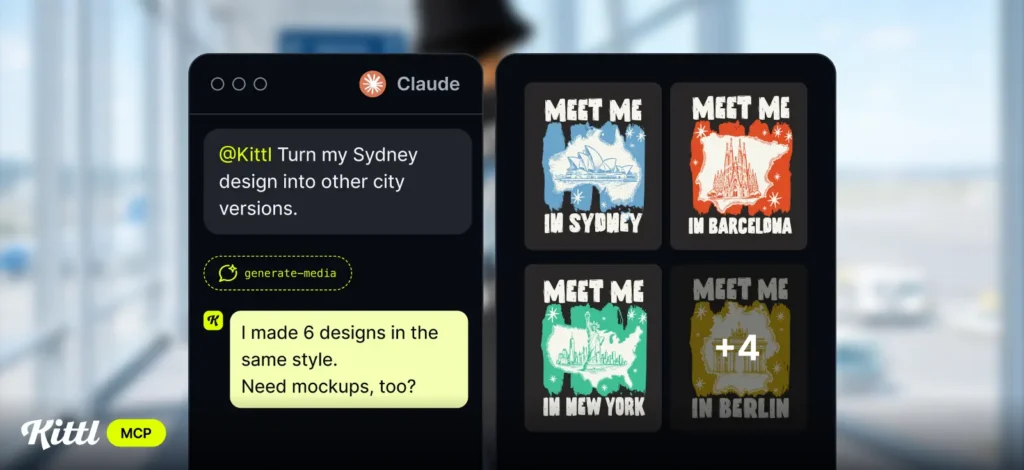
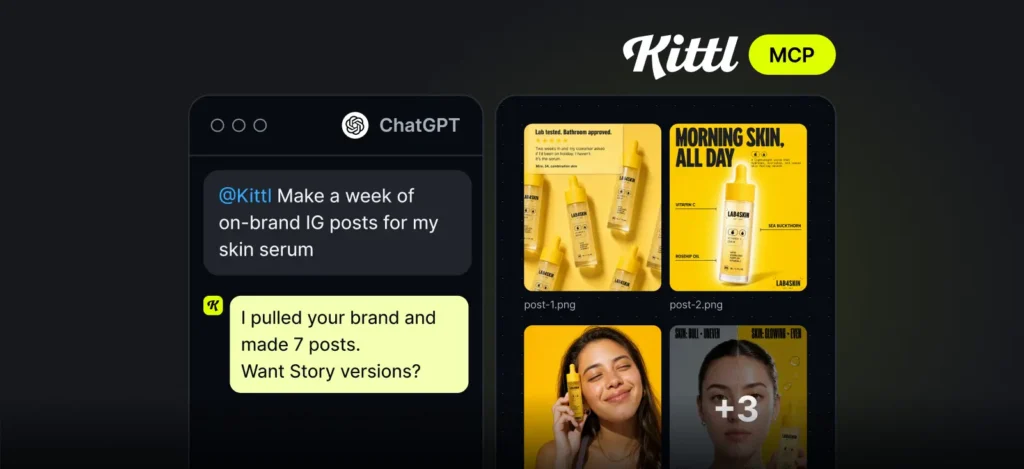
With Kittl MCP, that work moves into the conversation you’re already having with ChatGPT or Claude. Share a photo of your new product, say what you need, and Kittl’s design tools create it with your Brand Kit, so every asset looks like it belongs to your brand.
How a launch comes together
Everything starts with one photo of your new product. From there, the conversation builds the launch step by step:
- Share the photo and tell your assistant what you’re launching.
- Point to the listing, ad, or post style you already use, or let Kittl pull it from your Brand Kit.
- Ask for the assets you need. Kittl creates them and shows them right in the chat.
- Refine what isn’t right yet, then open the results in Kittl to export.
Because it all happens in one thread, your assistant remembers the product, the brand, and the brief. You don’t repeat yourself for every format.
Join our live demo (November 10)
In this session we’ll show you the Kittl MCP, a one-time connection that puts Kittl’s design tools inside the AI you already use. Ask any questions live.
What you can create for your launch
Four ways to put it to work this week. Copy the prompts, swap in your product, and go.

Product listing images
Your shop already has a look customers recognise. Give your assistant one of your best listings as a reference, add the new product photo, and get a matching set: the hero shot, a lifestyle scene, and a close-up, in the same angles and style as the rest of your shop.
Try: “Use Kittl to build a listing for my new candle in the same style as my Morning Mist listing: hero shot, lifestyle scene, and close-up.”

Social media
A launch needs more than one post. Plan the week with your assistant, then let Kittl create the visuals for each day, from a teaser to the launch-day announcement. Add a short video to give the drop some motion.
Try: “Use Kittl to create a teaser, a launch-day post, and two follow-up posts for my new candle, plus a short announcement video.”

Ads
Ads need the same message in a lot of sizes. Ask once and get creatives for feed, stories, and banners in your brand colours and fonts. Then ask for a few versions with different headlines or backgrounds to see which one performs.
Try: “Use Kittl to make ads for my new candle in feed, story, and banner sizes, with my Brand Kit, plus two variations to test.”
Tips for an on-brand launch
- Set up your Brand Kit first. No Brand Kit yet? Ask Kittl to build one from your website before you start. Every image after that picks up your colours, fonts, and logo.
- Use a clear product photo. Good light and a simple background give Kittl the best starting point, so the product looks right in every scene.
- Name Kittl in your prompt. Start with “Use Kittl to…” so your assistant uses Kittl’s design tools instead of its own.
- Keep one chat per launch. Your assistant keeps the context, so follow-up requests like “now the same for stories” just work.
- Finish in Kittl. Open any result in Kittl to fine-tune the details, export at full resolution, and keep everything for the launch in one folder.
*Based on 1,500 tokens with ChatGPT 2.5 Flare. Other models use more tokens per image. Bonus tokens expire 7 days after you connect. Terms & Conditions apply.

Tobias Saul is a co-founder and chief product officer at Kittl, where he leads the vision for making professional design tools simpler, smarter, and more inspiring to use. With a background in typography, lettering, and graphic design, Tobias brings a deep appreciation for craft and detail to Kittl’s product and brand experience.