
You might be wondering, “Why is color contrast important?”
If so, you are not alone.
Color is one of the most exciting tools in a designer’s arsenal. It sets the tone, evokes emotion, and adds flair to any visual piece. But here’s the kicker: even the most stunning design can fall flat if the colors don’t work, not just aesthetically, but functionally.
For new and aspiring designers, it’s easy to get wrapped up in color palettes and visual trends — until a client, teacher, or user points out: “I can’t read this.” And just like that, the focus shifts from making it pretty to making it accessible.
This article is here to tackle that often-overlooked color contrast blind spot. Many beginner designers struggle with accessibility.
Not because they don’t care, but because they simply don’t know how to check for it or why it even matters. Slides, posters, social media content — all may look great at first glance.
But if the color contrast fails, the message doesn’t land. And when your message gets lost, your design fails to do its job.
So, let’s change that.
We’re going to break down what color contrast actually means, why it’s crucial in your design workflow, and how you can easily check and improve it.
You’ll walk away with practical tips, beginner-friendly tools, and a better understanding of how contrast isn’t just a “nice-to-have” — it’s the secret ingredient that ensures your designs don’t just look good, but work for everyone.
What is color contrast in design?
Color contrast is the visual difference between two colors. In design terms, its most often used to describe the contrast between text and its background. High contrast makes content easy to read. Low contrast? Not so much.
For example, white text on a black background has a strong color contrast — it pops. But yellow text on a white background? That’s a recipe for eye strain.
In the most practical sense, color contrast ensures that important information is visible and readable, no matter who’s looking at it. This is especially crucial for users with low vision, color blindness, or cognitive differences.
But honestly? Everyone benefits from strong color contrast, even if they have perfect vision. Aside from your overall color scheme, you’ll also notice that it’s important to prioritize contrast for optimal text readability.
Here’s what color contrast isn’t:
- It’s not just about pretty color combinations
- It’s not just a “web thing” for developers
- It’s definitely not something to skip when you’re rushing to finish a design
Think of contrast as the foundation of legibility. You can have the most beautiful typography in the world, but if the colors don’t contrast well, your audience might scroll right past — or worse, bounce from your site, close your deck, or leave your post unread.
Examples of high vs. low color contrast
In short, high color contrast combinations are easy to read, while low contrast ones often blend together and become hard to see.
Let’s paint a clearer picture with some examples:
- High contrast: Black text on a white background, or white text on navy blue
- Moderate contrast: Gray text on a light blue background
- Low contrast: Yellow text on white, or pastel pink on beige
Remember, your design doesn’t have to be boring to be readable. You just need to make smart contrast choicesespecially when it comes to key elements like headings, buttons, links, and slides.
But if you need more insights on what color works and why, you will benefit from learning about color theory.
Why does color contrast matter more than you think?

Color contrast helps people read your work, makes your design clearer for everyone, and elevates your work to look more professional.
When you’re just starting out as a designer, accessibility can feel like a big, technical topic that lives in someone else’s job description. But here’s the truth: good contrast isn’t just for colorblind users or corporate websites, it’s for everyone.
Each of these factors can impact how your design performs, whether it’s a client slide deck, social media post, or website.
01. Color contrast helps people actually read your work
Roughly 1 in 12 men and 1 in 200 women have some form of color blindness, according to the Cleveland Clinic.
That means millions of people struggle to distinguish between colors like red and green or blue and purple. So if you design a chart, button, or block of text using color combinations that blend together? They may not even see it.
This is where color contrast ratios come in. And yes, there’s a number for that.
According to W3C’s accessibility guidelines (WCAG), your text should have a color contrast ratio of at least 4.5:1 to be considered readable for most people. Don’t worry, you don’t have to do the math. There are free tools that check this for you (we’ll get to those in a bit).
02. Color contrast makes your design clearer for everyone
Even people with perfect vision benefit from strong color contrast. It simply makes content easier to read — whether it’s a slide deck projected in a bright room or an Instagram post viewed outdoors in full sunlight.
If the text and background don’t stand out from each other, people won’t stick around — they’ll squint, scroll past, or stop paying attention.
And there’s research to back it up. In fact, studies like this one from Design for Ducks show that low contrast contributes to visual fatigue and user frustration, even for those without visual impairments.
03. Color contrast makes your work look professional
Imagine you’ve just launched your portfolio site, but the homepage text fades into the background. First impressions matter, and your visitors might be thinking, Did they even test this before going live?
A hard-to-read design leaves users confused or frustrated. On the flip side, a layout that feels clean, clear, and easy on the eyes instantly builds trust.
Getting your color contrast right isn’t just about style — it shows you care about usability and the finer details.
How to check color contrast for accessibility?
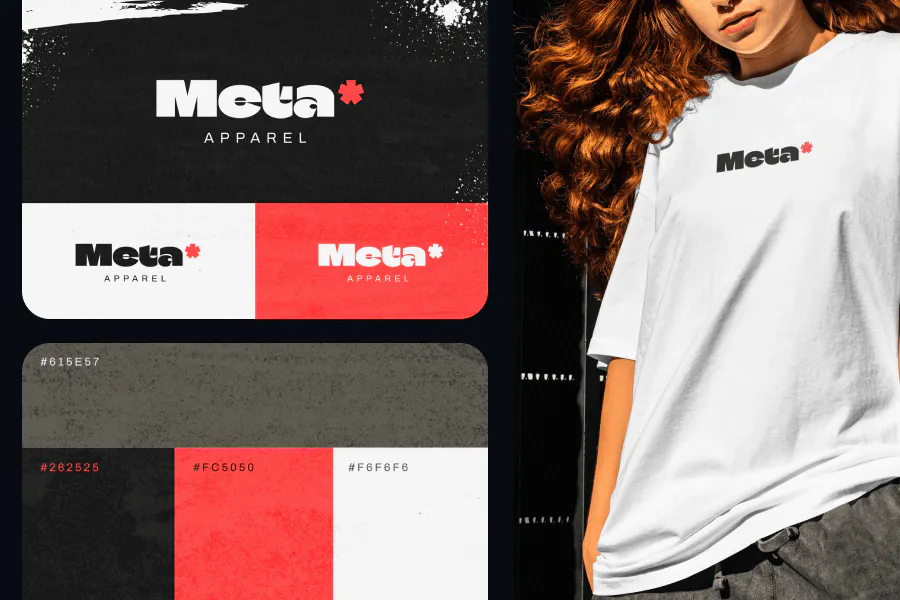
Before you jump into online tools or color contrast checkers, it helps to train your designer eye to spot contrast issues. Trust us being able to eyeball a poor contrast combo will save you tons of time down the road.
So, what should you actually look for?
1. Light vs. dark pairing
Start by asking: Is the text significantly lighter or darker than the background?
- Great contrast: black text on a white background, or white text on a dark navy
- Poor contrast: light gray text on pastel pink, or yellow text on white
If both colors feel like they sit in the same “brightness zone,” your contrast is probably too low.
2. Use the squint test
Give your design a quick squint. If the text and background start to blur together or the words almost vanish, it’s a sign that your contrast may not be strong enough.
This simple technique helps assess the visual hierarchy of your design. By squinting, you reduce visual clarity, allowing you to see which elements stand out the most. If the key components of your design aren’t immediately apparent, it might be time to adjust your contrast.
3. Try grayscale mode
This might be one of the quickest ways to spot a contrast issue. Just take a screenshot of your design and convert it to grayscale — either in your design software like Figma or Photoshop, or using your phone’s photo editor.
If the text still stands out clearly, you’re good to go. But if things start to look flat, faded, or hard to separate, it’s probably time to revisit your color choices.
This test is especially helpful when designing for users with color blindness or visual impairments.
4. Understand luminance
We’re not diving deep into color science here, but here’s a simplified takeaway: your eye perceives brightness based on luminance, not just color hue. Some colors, even if they look different, have similar brightness levels, making them tough to read when stacked.
According to WebAIM, contrast is calculated using relative luminance values on a scale from 0 (black) to 1 (white). The higher the difference between text and background, the better the contrast.
5. Trust your instincts and verify
Once you’ve trained your eye, you’ll catch more bad contrast moments on the fly. But it’s always smart to double-check using tools, especially for web and digital content where accessibility compliance matters.
Online tools to check for color contrast (Free and fast)
Once you’ve done the eyeball test, these tools will give you precise numbers (like that 4.5:1 contrast ratio we mentioned earlier):
- WebAIM Contrast Checker: The gold standard. Enter two color hex codes, and it instantly tells you if your combo passes WCAG guidelines.
- Coolors Accessibility Tools: Super beginner-friendly. You can compare multiple color pairs and see how they perform visually and numerically.
- Chrome DevTools: If you’re working on a website or web app, Chrome’s built-in color picker shows contrast ratios right inside the browser. Just inspect an element, click on the color, and boomcontrast score included.
Mobile-friendly contrast apps
On the go? These apps make it easy to check contrast when inspiration (or feedback) hits:
- Color Contrast Analyzer (iOS): A simple app that lets you input colors and check if they meet accessibility standards.
- Contrast by UserLight (iOS): Clean and intuitive app that shows contrast scores with WCAG pass/fail indicators.
- Accessibility Scanner (Android): Developed by Google, this tool scans your screen for accessibility issues, including contrast.
So yes, tools are helpful — but don’t lean on them completely. When you know what to look for, you’ll start building contrast-awareness into every design, from mood boards to final mockups.
Contrast in color is important to slides for what reasons?

Your client might say they want the slides to look more polished or pop a bit more. What they might not say but absolutely expect is that the design should actually work in the room. And that’s where contrast can make or break your presentation.
Designing slides is a whole different challenge from crafting a social post or a website. You’re not designing for someone holding a screen inches from their face — you’re designing for a room full of people, some sitting 20 feet away, squinting at a projection under harsh lighting.
Here’s why getting color contrast right in slides is more important than most people realize:
01. Viewers may sit far from the screen
People in the back of the room won’t squint to read low-contrast text. If your slide uses light gray text on a white background, it may look sleek on your laptop but become invisible in a large conference room.
Use black or dark navy text on a white or very light background for body content. Save your accent colors for headers or callouts, not long blocks of text.
02. Projectors wash out weak contrasts
Most projectors reduce contrast by default. Even dark slides can look faded or “muddy,” especially in bright rooms. That rich forest green you chose for the background? It may end up looking like murky gray when projected.
Example:
- Bad: Medium blue background with white text = low legibility on a washed-out projector
- Good: Charcoal background with bold white or yellow text = stands out clearly in any lighting
03. Important data can disappear visually
Charts, graphs, and data tables rely heavily on color contrast to separate information. If all your bar graph colors fall into the same tonal range, like light pink vs. light orange. They’ll blur together.
Use contrast not just between colors, but between color and background. Add outlines or labels. Use dark text on pale-colored data points and vice versa.
04. Dark mode vs. light mode: design needs to adapt
Some clients love dark slides for a cinematic feel. Others prefer clean white backgrounds. Either way, your contrast game needs to adjust.
- For light slides: Go with dark text (black, navy, deep gray) and keep icons bold
- For dark slides: Use bright, desaturated text (white, light beige, pastel blue) and avoid soft grays
Run a quick grayscale test on your final slides, especially data-heavy ones. If you can’t distinguish key elements without color, your contrast probably needs work.
Quick tips to improve your color contrast
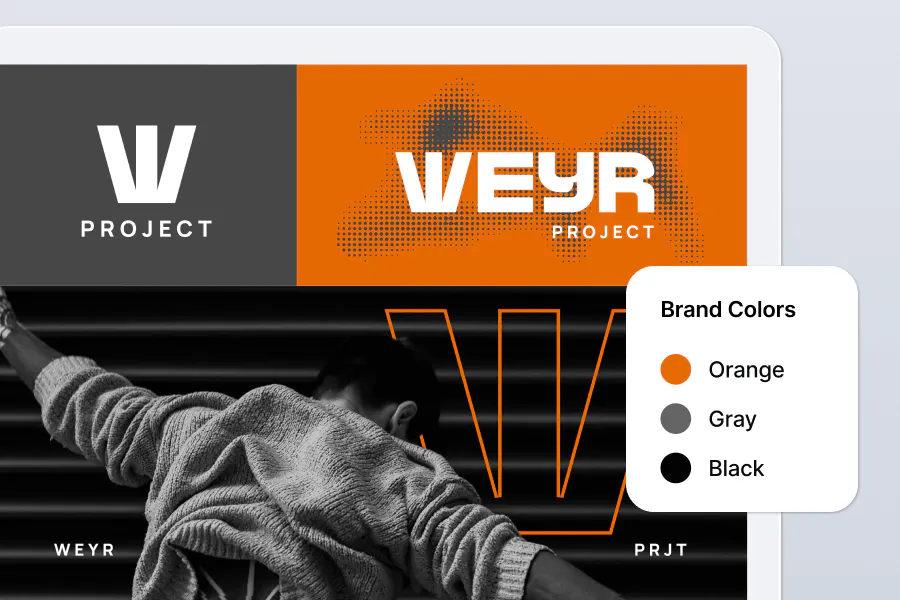
Not sure where to start when it comes to fixing contrast issues? Don’t worry, this part’s all about small tweaks that can make a big impact.
Whether you’re designing a slide, a social media graphic, or a full website layout, these contrast tips will help your work become more readable, more professional, and more inclusive.
01. Use black or white text over complex backgrounds
If your design has a photo, gradient, or texture in the background, always ask: Does my text still stand out?
Best practice: Stick to white or black text for maximum readability. Add a subtle overlay to your background (like a semi-transparent dark layer) to make your text pop even more.
And don’t forget, your text style matters too. Pairing fonts with clear contrast in weight and style (like a bold header with a light body font) helps readability even more, especially when the background is busy.
If you’re not sure where to start, check out this guide on font pairing for enhanced contrast to make sure your typography choices support your design’s clarity. This is especially helpful for hero banners, Instagram posts, and header slides.
02. Don’t rely only on color — add outlines, shadows, or icons
Color isn’t always enough. When your background and text colors are too close in tone, it helps to add visual support.
- Try a thin outline around your text (white or black usually works)
- Use drop shadows sparingly to add depth without clutter
- Include small icons or underlines for emphasis if color alone won’t cut it
03. Build color contrast into your style guide early on
Waiting until the final draft to check the contrast? That’s like waiting until the night before to test your slides on a projector, not ideal.
Instead, build good contrast habits right into your brand style guide or project color palette:
- Choose heading and body text colors that pass WCAG standards from the start
- Use accessible background colors for UI elements or slide templates
- Mark certain combos as “safe” for dark or light modes
Doing this upfront makes everything easier later and helps maintain a clean, consistent, accessible brand identity.
Check your color contrast for accessible, readable design
At the end of the day, good contrast isn’t just about aesthetics. It’s about clarity, accessibility, and communication. When your colors don’t work together, your message gets lost. And as a designer, especially if you’re just starting outthats the one thing you don’t want to happen.
By learning to spot low contrast, using simple tools to double-check your choices, and building better habits into your workflow, you’ll create designs that not only look great but work for everyone. That’s what separates beginners from pros.
Need a head start? If you want to explore slide layouts, social posts, or posters that already follow smart contrast principles, take a look at these designer-friendly templates built for readability. They’re fully editable, and a great way to practice applying everything you’ve learned today.
Design with intention and let your message stand out for every viewer.